Tailscale accept-routes Breaks Your LAN? Fix It With ip rule
You turn on --accept-routes on a Linux server so it can reach the subnets at your second location. Shortly afterwards, SSH sessions to devices on your own LAN hang, the NAS responds slowly or not at all, and the printer in the hallway has disappeared. I ran into exactly this behavior in my two-location setup. In this guide I’ll show you how to find the cause and how to fix it for good with a single routing rule.
Quick summary
- The fix sends traffic for your local LAN directly through the host’s network card again.
- It’s for you if a Linux host on your LAN accepts subnet routes from Tailscale and one of those routes covers your own LAN.
- You need root access to the host, systemd and a few minutes.
- At the end you have a rule that survives a reboot and Tailscale restarts.
What happens in the background
A subnet router is a Tailscale device that passes a whole local network (for example 192.168.1.0/24) into your tailnet, the private network of all your Tailscale devices. Other devices in the tailnet can then reach that network without Tailscale running on every machine there. I describe how I connected my two locations this way in My homelab across two sites.
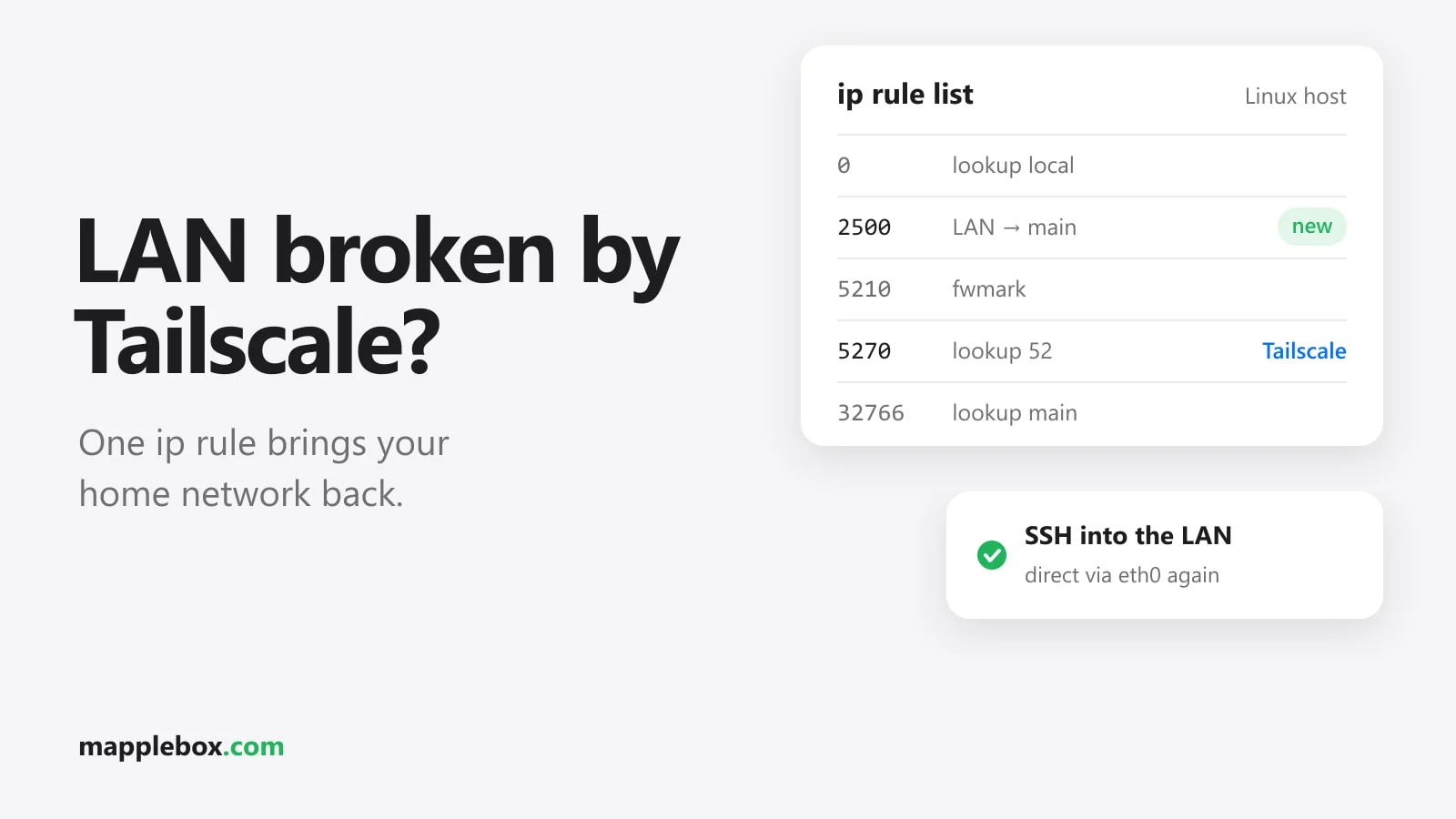
Linux devices don’t accept these routes by default. Only with --accept-routes does the host take them over. Tailscale then writes them into its own routing table with the number 52. Your system’s normal routes live in the table main, which is why a plain ip route doesn’t show the Tailscale routes. Which table the kernel uses is decided by policy routing rules, ip rule for short. Each rule has a priority, and the lower number is checked first. According to its docs, Tailscale puts its rules in the range 5200 to 5500, currently at 5210, 5230, 5250 and 5270. The rule at 5270 sends everything to table 52.
The rule for the table main only comes at priority 32766. So if table 52 has a route that includes your own LAN, it wins, no matter how well the direct route in main matches. This happens, for example, when the other location uses the same /24 as you, when a larger network like 192.168.0.0/16 is advertised there, or when a second subnet router on your own LAN announces your network. Your host then sends packets to the device in the same room through the tunnel.
What you need
- A Linux host with Tailscale where
--accept-routesis active (Debian, Ubuntu, a Proxmox host or an LXC container) - Root access or
sudo - The
iproute2package (it provides theipcommand and is already installed on almost every system) - You know your local subnet. In this guide it’s
192.168.1.0/24. Replace it with yours everywhere. - Ideally a second way to reach the host (the console in Proxmox or a monitor), in case you lock yourself out while testing
Step 1: Check whether Tailscale takes over your LAN traffic
First, look at the rules:
ip rule showWith Tailscale active, the output looks roughly like this:
0:      from all lookup local
5210:   from all fwmark 0x80000/0xff0000 lookup main
5230:   from all fwmark 0x80000/0xff0000 lookup default
5250:   from all fwmark 0x80000/0xff0000 unreachable
5270:   from all lookup 52
32766:  from all lookup main
32767:  from all lookup default
Then check what’s in table 52:
ip route show table 52Look for entries with dev tailscale0 that include your LAN. That can be 192.168.1.0/24 itself or a larger network it sits inside. The clearest test is ip route get with the IP of a device on your LAN:
ip route get 192.168.1.20If the answer says dev tailscale0 table 52, you’ve found the problem. The correct result would be your LAN interface, for example dev eth0, or dev vmbr0 on a Proxmox host.
Step 2: Set the rule once by hand
The fix is a rule of your own with a lower priority number than Tailscale’s. It says that everything going to your LAN checks the table main first. Tailscale describes this same approach in its troubleshooting docs on overlapping subnets.
sudo ip rule add to 192.168.1.0/24 lookup main priority 2500Right after that, test again with ip route get 192.168.1.20. Now your LAN interface should show up and table 52 should be gone. The rule disappears after the next reboot, though. You’ll take care of that in the next step.
Step 3: Make the rule permanent with a systemd service
A oneshot service is a systemd unit that runs a command once at startup and then doesn’t keep running. With RemainAfterExit=yes it still counts as active, and when it stops, ExecStop removes the rule again. First check where ip lives on your system:
command -v ipOn current Debian and Ubuntu that’s /usr/sbin/ip. Then create the unit:
sudo nano /etc/systemd/system/lan-route-fix.service[Unit]
Description=Prefer local LAN over Tailscale routes
Wants=network-online.target
After=network-online.target tailscaled.service
[Service]
Type=oneshot
RemainAfterExit=yes
ExecStartPre=-/usr/sbin/ip rule del to 192.168.1.0/24 lookup main priority 2500
ExecStart=/usr/sbin/ip rule add to 192.168.1.0/24 lookup main priority 2500
ExecStop=/usr/sbin/ip rule del to 192.168.1.0/24 lookup main priority 2500
[Install]
WantedBy=multi-user.targetThe ExecStartPre line deletes any rule that might already exist, so you don’t create it twice. The minus sign before the path tells systemd to ignore an error at this point, for example when the rule doesn’t exist yet. Now enable and start the service:
sudo systemctl daemon-reload
sudo systemctl enable --now lan-route-fix.service
If the host has several local subnets, for example a separate VLAN for IoT, add one ExecStart and one ExecStop line per network (systemd allows several of them with Type=oneshot). If your host uses systemd-networkd, you can also do this with a [RoutingPolicyRule] section in the .network file of your LAN interface. The Tailscale docs point to this option too.
Check that it works
systemctl status lan-route-fix.serviceshowsactive (exited). That’s correct for a oneshot service.ip rule showcontains a line2500: from all to 192.168.1.0/24 lookup main, above the Tailscale rules.ip route get 192.168.1.20shows your LAN interface.ip route getwith an IP from the other location’s subnet still showsdev tailscale0 table 52. That tells you the routes through Tailscale still work.- After a
sudo reboot, the rule and both tests are unchanged.
Common problems
The service doesn’t start
If systemctl status reports something like No such file or directory, the path to ip is wrong. Enter the path that command -v ip prints.
The other location is no longer reachable
If the rule is there but the remote subnet no longer responds, you probably put a network that’s too large into the rule, such as a /16 that also contains the subnet at the other location. The rule may only cover your local network. If both locations use exactly the same /24, this host can’t reach the remote network cleanly in any case. Then the only fix is to renumber one of the networks.
Laptops and changing Wi-Fi networks
Don’t use this rule on a laptop that switches networks all the time. Tailscale itself points out that this workaround only makes sense with fixed networks and fixed interfaces. On someone else’s Wi-Fi with the same addressing, your traffic would otherwise go to the wrong network.
The rule is suddenly gone
If LAN access is slow again, check with ip rule show whether your rule is still there. A manual ip rule flush or another network tool can remove it. A sudo systemctl restart lan-route-fix.service sets it again.
Alternatives to the ip rule
The rule is a workaround. A cleaner approach is to avoid the problem in the first place:
- Only accept routes where you need them. If the host doesn’t need the other location at all, turn it off again with
sudo tailscale set --accept-routes=false. - Don’t advertise overlapping subnets. A subnet router should only announce the networks that actually exist at its location, and no generous /16.
- Use a separate subnet per location, for example
192.168.1.0/24at one and192.168.2.0/24at the other. Then nothing can overlap. - For two subnet routers on the same LAN for high availability, Tailscale recommends in its high availability docs to set only
--advertise-routesthere and leave out--accept-routes.
One more note on tailscale up. If you change options with it, you have to repeat all the flags you set before. tailscale set only changes the one option you specify, so it’s more convenient for changes like this.
Wrapping up
When a Linux host can’t properly reach its own LAN after --accept-routes, ip route get shows you in seconds whether table 52 is to blame. The rule with priority 2500 sends your local network back to the table main, and the oneshot service sets it again on every boot. If you’re still planning your network, give each location its own subnet and you won’t need the fix at all. If you want to know when a host on your LAN suddenly becomes unreachable, Uptime Kuma with ntfy push alerts can help.
Did this guide help you? You can buy me a coffee on Ko-fi. It keeps MappleBox ad-free.