What’s Up Docker vs Watchtower: Docker Update Notifications
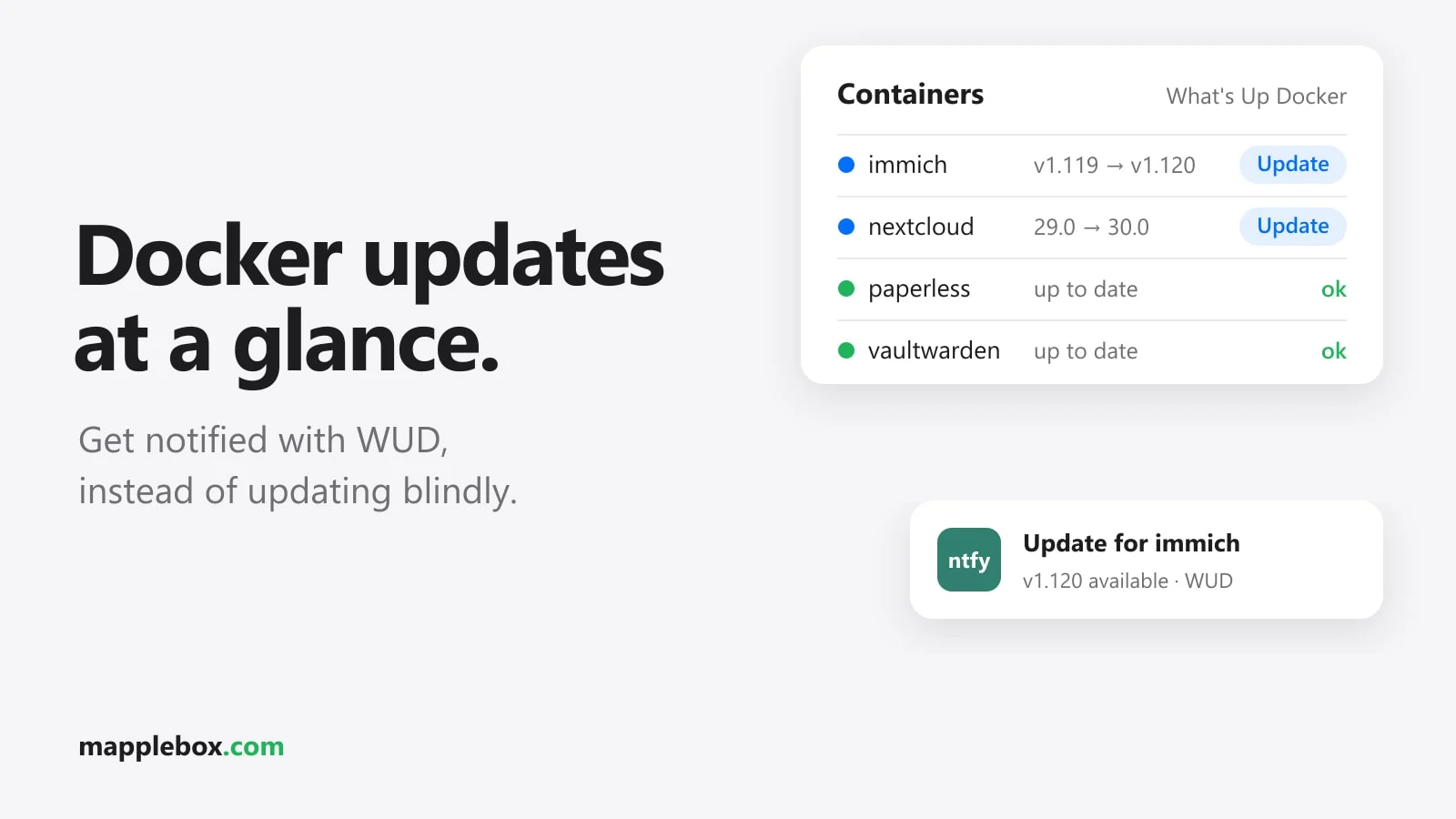
For many people, Watchtower is the first tool they reach for to handle Docker updates. It pulls new images and restarts your containers automatically. That’s convenient until an overnight update kicks off a database migration or removes a config option, and you find a broken service in the morning. So I only get notified that an update exists, and I install it myself. For that I use What’s Up Docker, WUD for short, with push notifications through ntfy. In this guide you’ll set up exactly that.
Quick summary
- WUD regularly checks whether newer images exist for your running containers and shows them in a web dashboard.
- Through a trigger, WUD sends you a push notification when it finds a new update. In this guide that goes through ntfy.
- This is for you if you run containers with Docker Compose and prefer to install updates yourself.
- You need a Docker host with Compose and either your own ntfy server or a topic on ntfy.sh.
Why not just use Watchtower?
Watchtower installs updates as soon as it finds them. You don’t see a changelog first and you can’t make a backup. With images tagged latest, that can even put a new major version on your server. On top of that, the original GitHub repository containrrr/watchtower was archived on December 17, 2025 and has been read-only since then. So no more fixes are coming there.
WUD can also update containers on its own, but that is a separate trigger you would have to turn on deliberately. Without it, WUD only reads and reports.
What you need
- A Linux host with Docker Engine and the Compose plugin (
docker compose versionshould print a version) - Port 3000 free on the host for the web UI
- An ntfy topic you’re subscribed to in the ntfy app. How to self-host ntfy and create an access token is covered in my guide to Uptime Kuma and ntfy.
- Ideally, your other containers run with Compose, with one
docker-compose.ymlper stack. That makes the manual update later easy.
The commands and variables in this guide refer to WUD 9.x, the current version at the time of writing according to the official docs.
Step 1: Start WUD with Docker Compose
Create a folder with two files in it:
sudo mkdir -p /opt/wud/store
cd /opt/wud
sudo nano .env
The .env file holds the values that shouldn’t sit in the Compose file. Docker Compose reads this file automatically when it’s in the same folder:
WUD_ADMIN_PASSWORD=a-long-password-of-your-own
NTFY_TOKEN=your-ntfy-access-token
Then the docker-compose.yml:
services:
  wud:
    image: getwud/wud
    container_name: wud
    restart: unless-stopped
    ports:
      - 3000:3000
    volumes:
      - /var/run/docker.sock:/var/run/docker.sock:ro
      - /opt/wud/store:/store
    environment:
      - WUD_AUTH_ADMIN_USER=admin
      - WUD_AUTH_ADMIN_PASSWORD=${WUD_ADMIN_PASSWORD}
      - WUD_WATCHER_LOCAL_CRON=0 6 * * *
      - WUD_TRIGGER_NTFY_HOMELAB_URL=https://ntfy.example.com
      - WUD_TRIGGER_NTFY_HOMELAB_TOPIC=docker-updates
      - WUD_TRIGGER_NTFY_HOMELAB_AUTH_TOKEN=${NTFY_TOKEN}
What each part does:
- The Docker socket
/var/run/docker.sockis the interface WUD uses to see which containers are running. The:romounts it read-only, which is how every example in the WUD docs shows it. It only protects the socket file itself, though. API calls through the socket still work. Whoever has the socket effectively has root on the host, so you shouldn’t expose the UI to the internet. - WUD keeps its SQLite database
wud.sqliteunder/store. It holds your containers, the history and the users, among other things. So that it survives a restart, the folder lives on the host at/opt/wud/store. - WUD 9 requires a login for the UI and the API. Without an admin account in the database and without
WUD_AUTH_ADMIN_USERandWUD_AUTH_ADMIN_PASSWORD, WUD won’t start at all. - A watcher is the component that observes a Docker host. Without any configuration of your own, WUD creates a watcher called
localfor the local socket. WithWUD_WATCHER_LOCAL_CRONyou change when it checks. The default is once an hour (0 * * * *). I set it to daily at 6 a.m. here. WUD also checks once right at startup (WATCHATSTARTis on by default), so you don’t have to wait until the next morning for a first test. - A trigger is the action WUD runs when it finds an update.
HOMELABis a name you can choose freely for this trigger.
If your password contains a $, put it in single quotes in the .env file, or Compose will try to resolve it as a variable. Then start it:
sudo docker compose up -d
sudo docker compose logs -f wud
Step 2: Adjust the ntfy trigger
The only required setting for the ntfy trigger is _TOPIC. If you leave out _URL, WUD sends to the public server https://ntfy.sh. There you should pick a topic name that’s hard to guess, because anyone who knows it can read along. For a protected topic on your own server, use _AUTH_TOKEN, or _AUTH_USER and _AUTH_PASSWORD instead.
A few optional variables I find useful:
      - WUD_TRIGGER_NTFY_HOMELAB_PRIORITY=3
      - WUD_TRIGGER_NTFY_HOMELAB_TAGS=whale,package
      - WUD_TRIGGER_NTFY_HOMELAB_THRESHOLD=minor
      - WUD_TRIGGER_NTFY_HOMELAB_MODE=batch
PRIORITY goes from 1 to 5, and the default is 3. TAGS are the small emojis in the ntfy app. With THRESHOLD=minor, WUD only reports minor and patch updates according to semver, meaning version numbers in the pattern major.minor.patch. The default all reports everything, including pure digest changes. A digest is the checksum of an image. It changes when a new image is published under the same tag. MODE=batch bundles all found updates into one notification. By default, WUD fires only once per update (ONCE=true), so you won’t get the same message every hour.
Step 3: Control containers with labels
Labels are extra settings you add in the docker-compose.yml of each container. WUD reads them and adjusts how it handles that container. The most important ones:
wud.watch=falseremoves a container from monitoring, andwud.watch=trueadds it. If you only want to watch selected containers, setWUD_WATCHER_LOCAL_WATCHBYDEFAULT=falseon WUD and give only those containerswud.watch=true.wud.tag.includeis a regular expression (regex) that defines which tags count as an update at all.wud.tag.excludeexcludes tags.wud.watch.digest=truemakes WUD watch for new images even with tags likelatest. For Docker Hub images this is off by default. According to the docs, the watcher may already do it on its own for other registries.wud.link.templatebuilds a link to the changelog that shows up in the notification and in the UI.wud.display.namegives the container a readable name in the UI and in notifications.
Here’s an example of a container that should only report stable versions in the format 1.2.3:
services:
  vaultwarden:
    image: vaultwarden/server:1.32.0
    labels:
      - wud.tag.include=^\d+\.\d+\.\d+$$
      - wud.display.name=Vaultwarden
      - wud.link.template=https://github.com/dani-garcia/vaultwarden/releases/tag/$${major}.$${minor}.$${patch}
Watch out for the double $$. Docker Compose uses $ for its own variables, so you have to double every $ that should reach WUD. The version number in the image is just an example. After changing the labels, restart the container with docker compose up -d so Docker picks up the labels.
Step 4: Multiple Docker hosts
If you have more than one Docker host, there are two ways to go. I run a separate WUD instance on every Docker host, and they all report to the same ntfy topic. That’s the simplest option, because each instance only needs the local socket. Give each instance a hint about its host so you can see in the notification where it came from. The easiest way is through the tags, for example WUD_TRIGGER_NTFY_HOMELAB_TAGS=whale,nas on the NAS. You can also use a separate topic per host.
The other way is a single WUD instance that watches remote hosts through the Docker API. For that you add another watcher per host. WUD only creates the automatic local watcher if you configure no watchers at all. In the example above, it’s already defined explicitly through WUD_WATCHER_LOCAL_CRON, so it stays.
      - WUD_WATCHER_NAS_HOST=192.168.1.30
      - WUD_WATCHER_NAS_PORT=2376
      - WUD_WATCHER_NAS_CAFILE=/certs/ca.pem
      - WUD_WATCHER_NAS_CERTFILE=/certs/cert.pem
      - WUD_WATCHER_NAS_KEYFILE=/certs/key.pem
You also mount the certificates read-only under /certs with a volume. The remote Docker daemon has to listen on TCP with TLS for this. You set that up on the target host following the Docker docs on protecting the daemon socket. That’s also where you create the client certificates ca.pem, cert.pem and key.pem. I wouldn’t open port 2375 without TLS. Anyone who can reach that port has full control over the host.
Check that it works
sudo docker compose psin the/opt/wudfolder shows the container asrunning.- The output of
docker compose logs wudhas no errors about the socket, auth or the trigger. - At
http://192.168.1.x:3000you can log in withadminand your password and see your containers. - Containers with an available update are marked in the UI, and the ntfy notification arrives on your phone. To test it, you can start a container with an older version on purpose and then restart WUD with
sudo docker compose restart wudso it checks right away.
Step 5: Install the update yourself
When a notification comes in, check the changelog first, ideally through the link from wud.link.template. Look for breaking changes, meaning changes that require you to adjust your config. For databases and services with important data, I make a backup or a snapshot of the LXC or VM that Docker runs on before updating.
If the container uses a moving tag like latest or 1, this is enough in the stack’s folder:
cd /opt/vaultwarden
sudo docker compose pull
sudo docker compose up -d
If you pinned a fixed version like 1.32.0, pull won’t fetch anything new. In that case, first change the tag in the docker-compose.yml to the new version, then run the same two commands. Compose only restarts the containers whose image changed. Afterwards, check with docker compose logs that the service came up cleanly. You can clean up old images with sudo docker image prune if you need the space.
Common problems
WUD won’t start
Usually the admin variables are missing or the .env file isn’t in the same folder as the Compose file. sudo docker compose config shows you which values Compose actually uses.
No notification on the phone
Check the logs to see whether WUD runs the trigger at all. Common causes are a typo in the topic, a wrong token, or a URL with a path instead of just the base URL of the ntfy server. Test ntfy on its own, without WUD, with curl -H "Authorization: Bearer YOUR_TOKEN" -d "Test" https://ntfy.example.com/docker-updates.
Containers on latest never show an update
With moving tags like latest, WUD doesn’t watch digests of Docker Hub images by default. Set the label wud.watch.digest=true or switch to versioned tags. The second option is better anyway, because then you can read in the changelog exactly what changes.
Compose complains about the labels
Messages like invalid interpolation format almost always come from a single $ in a regex or link template. Double it to $$.
Wrapping up
WUD does the job Watchtower used to do for me, without changing anything by itself. Every Docker host runs an instance that reports updates to ntfy, and nothing gets installed until I’ve read the changelog. With THRESHOLD, MODE=batch and a few labels, you keep the number of notifications small enough that you actually read them.
Did this guide help you? You can buy me a coffee on Ko-fi. It keeps MappleBox ad-free.