Proxmox CPU Governor Powersave: Fix a Hot Idle Mini PC
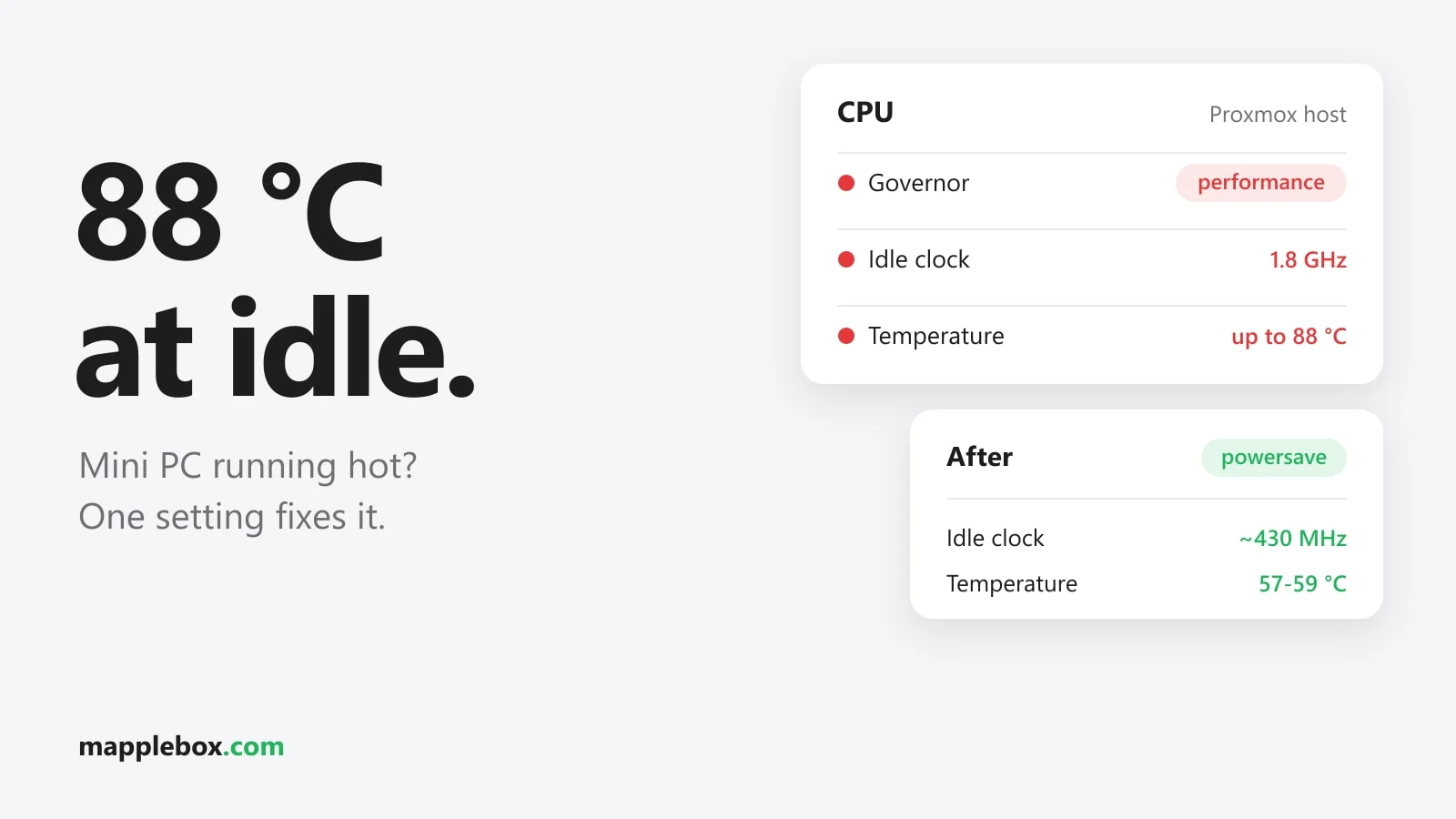
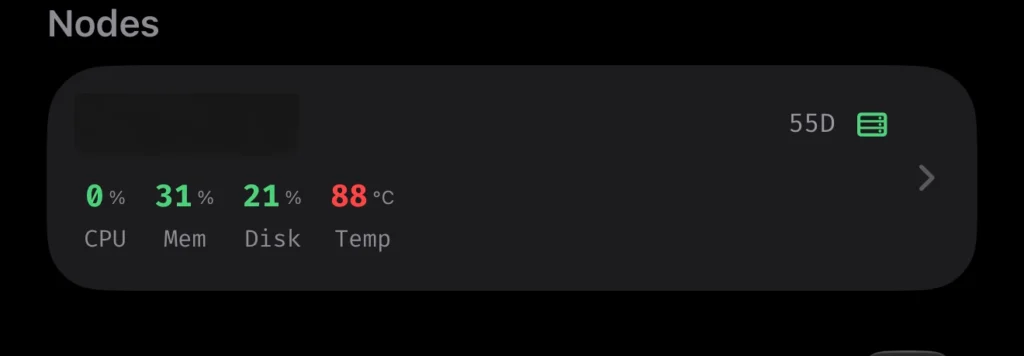
Is your Proxmox mini PC getting hot even though it has almost nothing to do? Often the CPU settings are to blame, and you can fix them with a short loop in the shell, without a reboot. In this guide you check the governor and EPP, change them and make the change permanent. On my mini PC, which runs a game server, Home Assistant and my reverse proxy, a monitoring app showed the CPU at 88 °C (190 °F) with a load average of about 0.3.
Quick summary
- The CPU governor is the rule in the Linux kernel that decides which clock speed the CPU uses. The Energy Performance Preference (EPP) is an extra hint to the CPU about whether it should favor performance or saving power.
- If both are set to
performance, the CPU clocks up even when idle and gets warm. Withpowersaveandbalance_performanceit can clock down when idle and still boost fully under load. - This guide is for Proxmox hosts with an Intel CPU and the
intel_pstatedriver. There’s a separate section for AMD further down. - You need root access to the shell of your Proxmox host (Node > Shell in the web interface, or SSH).
The hardware in my setup
My host is a Minisforum MS-01* with an Intel Core i9-13900H. That’s a laptop CPU with a lot of boost headroom, in a small case with a correspondingly small cooler. If you have a similar mini PC with an Intel CPU, the steps below work for you too.
Step 1: Check the governor, EPP and temperature
On Intel CPUs under Linux, the intel_pstate driver controls the clock speed. This is how you see which governor is active and which Energy Performance Preference (EPP) is set:
cat /sys/devices/system/cpu/cpu0/cpufreq/scaling_driver
cat /sys/devices/system/cpu/cpu0/cpufreq/scaling_governor
cat /sys/devices/system/cpu/cpu0/cpufreq/energy_performance_preference
grep MHz /proc/cpuinfo
If your governor is set to performance and the EPP is also set to performance, you’ve probably found the cause. That’s how it was for me. Because of it, the cores ran somewhere between about 1.5 and 5 GHz even when idle, and I measured an average of around 1.8 GHz. A higher clock means higher voltage, and that ends up as heat inside the small case.
If the third command reports that the file energy_performance_preference doesn’t exist, your CPU doesn’t use HWP (hardware-managed P-states). intel_pstate only creates the EPP file when HWP is in use. In that case you only change the governor in the steps below, and the EPP lines skip themselves automatically.
The kernel configuration decides which governor is active after boot. If CONFIG_CPU_FREQ_DEFAULT_GOV_PERFORMANCE is set there, intel_pstate starts with performance, otherwise with powersave. You can check this for your running kernel like this:
grep CPU_FREQ_DEFAULT_GOV /boot/config-$(uname -r)The EPP tells the CPU how to balance performance against saving power. You’ll find the possible values in energy_performance_available_preferences in the same folder. The usual ones are default, performance, balance_performance, balance_power and power. With performance, the CPU prefers to keep its clock high so it’s ready the moment the next request comes in. That may make sense on a gaming desktop, but on a server that spends most of its time waiting it only produces heat.
The easiest way to read the temperature itself is with lm-sensors. If you don’t have a Proxmox subscription, first go to Node > Updates > Repositories, disable the enterprise repository and add the no-subscription repository. If there’s also a Ceph enterprise repository listed, disable it too. Otherwise apt update stops with an error about the enterprise repo. Then run this on the Proxmox host:
apt update
apt install lm-sensors
watch -n 2 sensors
Look for the value “Package id 0”, which is the temperature of the whole CPU. Let it run for a few minutes, because you won’t catch the spikes with a single glance.
Step 2: The fix without a reboot
You can change the governor and EPP at runtime through sysfs (the virtual file system Linux uses to expose kernel settings). This loop sets the governor to powersave and the EPP to balance_performance for all cores:
for c in /sys/devices/system/cpu/cpu*/cpufreq; do
  echo powersave > $c/scaling_governor
  [ -e $c/energy_performance_preference ] && echo balance_performance > $c/energy_performance_preference
done
The [ -e ... ] check makes sure the EPP is only set if the file exists. Without HWP, the loop only changes the governor.
Keep the order in the loop as it is. As long as the governor is set to performance, intel_pstate won’t accept any other EPP, so the governor has to come first.
Don’t let the name “powersave” fool you. With intel_pstate it doesn’t mean the CPU gets throttled. Under load it still boosts to full speed. It’s just allowed to actually clock down when idle.
Before and after on my machine
| At idle | Before | After |
|---|---|---|
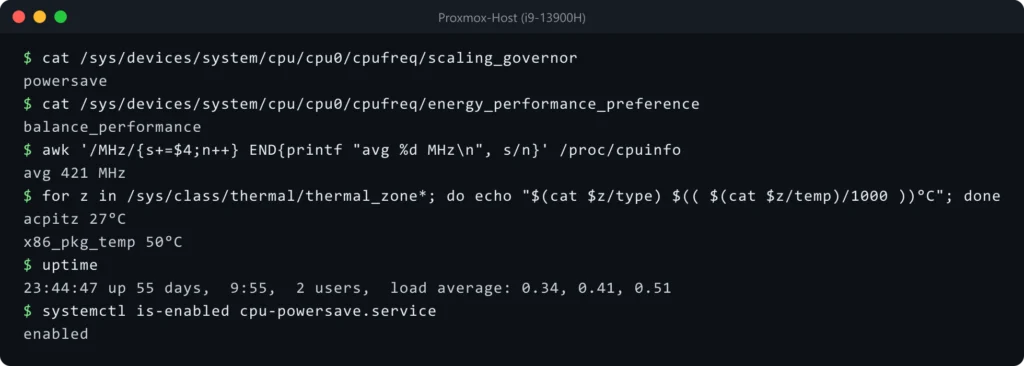
| Package temperature | about 61 to 67 °C, spikes up to 88 °C | about 57 to 59 °C |
| Average clock speed | about 1.8 GHz | about 430 MHz |
| Governor / EPP | performance / performance | powersave / balance_performance |
The table shows the usual range at idle. The screenshot below is a snapshot that caught a brief low point, which is why it shows a lower value than the table.
Step 3: Make it permanent with systemd
Values in sysfs are gone after a reboot. To keep the setting, you create a small oneshot service (a service that runs once and then exits) that runs at boot. Create the file /etc/systemd/system/cpu-powersave.service for this:
[Unit]
Description=CPU governor powersave and EPP balance_performance

[Service]
Type=oneshot
RemainAfterExit=yes
ExecStart=/bin/sh -c 'for c in /sys/devices/system/cpu/cpu*/cpufreq; do echo powersave > $$c/scaling_governor; [ -e $$c/energy_performance_preference ] && echo balance_performance > $$c/energy_performance_preference; done; true'

[Install]
WantedBy=multi-user.target
Pay attention to the double $$c. systemd replaces variables in ExecStart on its own, so with a single $c the shell would only receive an empty string. The true at the end makes sure the service still counts as successful when there’s no EPP file. Then enable the service:
systemctl daemon-reload
systemctl enable --now cpu-powersave.service
Step 4: Check that nothing switches it back
Before you rely on the service, check whether something else sets the governor back to performance, such as a cron job or cpufrequtils:
grep -rs scaling_governor /etc/cron* /var/spool/cron /etc/systemd /etc/rc.local
dpkg -l | grep -i cpufrequtils
cat /etc/default/cpufrequtils 2>/dev/null
On my machine none of these were set. After a reboot, cat /sys/devices/system/cpu/cpu0/cpufreq/scaling_governor should show powersave again, and systemctl status cpu-powersave should report “active (exited)”.
What about AMD?
The commands above are meant for intel_pstate. On AMD it depends on the driver, which the first command from Step 1 (scaling_driver) shows you:
amd-pstate-epp: This is the active mode of theamd-pstatedriver. It also offersenergy_performance_preference, with the possible values inenergy_performance_available_preferences. Ifscaling_available_governorslistspowersaveandperformance, the loop from Step 2 works the same way.acpi-cpufreq: The kernel falls back to this older driver whenamd-pstatecan’t start. There’s no EPP here, and thepowersavegovernor keeps the CPU at its lowest clock speed all the time. So the loop doesn’t fit here. Ifscaling_available_governorslistsschedutilorondemand, one of those is a better choice, because it adjusts the clock speed to the load.
cat /sys/devices/system/cpu/cpu0/cpufreq/scaling_driver
cat /sys/devices/system/cpu/cpu0/cpufreq/scaling_available_governors
cat /sys/devices/system/cpu/cpu0/cpufreq/energy_performance_available_preferences
You’ll find details on the modes in the kernel documentation for amd-pstate. My second Proxmox host has an AMD Ryzen CPU. When I checked, it was sitting at 20 °C (68 °F), so I left it as it was.
If it still gets hot afterwards
If the idle temperature still jumps above 80 °C (176 °F) with powersave, the cooling is probably the problem. The small coolers in mini PCs tend to clog up with dust, and opening the case and cleaning it out helps. While you have the case open anyway, you can also replace the thermal paste.
Have you ever seen your homelab server run hot at idle? Tell me in the comments what caused it for you.
* Affiliate link: As an Amazon Associate I earn from qualifying purchases. It costs you nothing extra. More info
Did this guide help you? You can buy me a coffee on Ko-fi. It keeps MappleBox ad-free.