Home Assistant Radiator Thermostat: Off When a Window Opens
You open the window to air out the room, and the radiator right underneath keeps blasting heat into the cold air. Or you’re out all day, and the apartment heats itself for nobody. Both waste energy, and you can automate both in an afternoon. In this guide I’ll show you how to add SONOFF TRVZB* smart radiator thermostats to Home Assistant and set them up so the heating turns off when a window opens, switches off when you leave and comes back on while you’re still on your way home. Every automation is included as YAML you can copy.
Quick explainer
- Radiator thermostat (TRV): TRV stands for thermostatic radiator valve. It’s the knob on the side of your radiator. The smart version has a small motor that opens and closes the valve, and you control it wirelessly.
- Zigbee: a low-power wireless standard for smart home devices. Battery devices like thermostats last for months on it. Mains-powered Zigbee devices, such as smart plugs, pass the signal along and extend the range.
- Coordinator (dongle): the hub of your Zigbee network. It’s a USB stick or a small network device that Home Assistant uses to talk to every Zigbee device.
- ZHA or Zigbee2MQTT: two ways to use Zigbee in Home Assistant. ZHA (Zigbee Home Automation) is built in, Zigbee2MQTT runs as a separate app. Both work with the TRVZB. I use ZHA.
- Thread and Matter: Thread is another low-power wireless standard, and Matter is the shared language that lets one device work in Home Assistant, Apple Home and Google Home at the same time.
- Automation: a rule that follows the pattern when (trigger), only if (condition), then (action). For example: when a window opens, turn the heating off.
- Scene snapshot: Home Assistant saves the current state of some devices (on or off, target temperature) and can restore it exactly later.
- Zone and presence: a zone is a circle on the map, for example 500 m around your home. The Home Assistant app on your phone reports which zone you’re in, so Home Assistant knows whether you’re home, almost home or away.
What happens automatically when you’re done
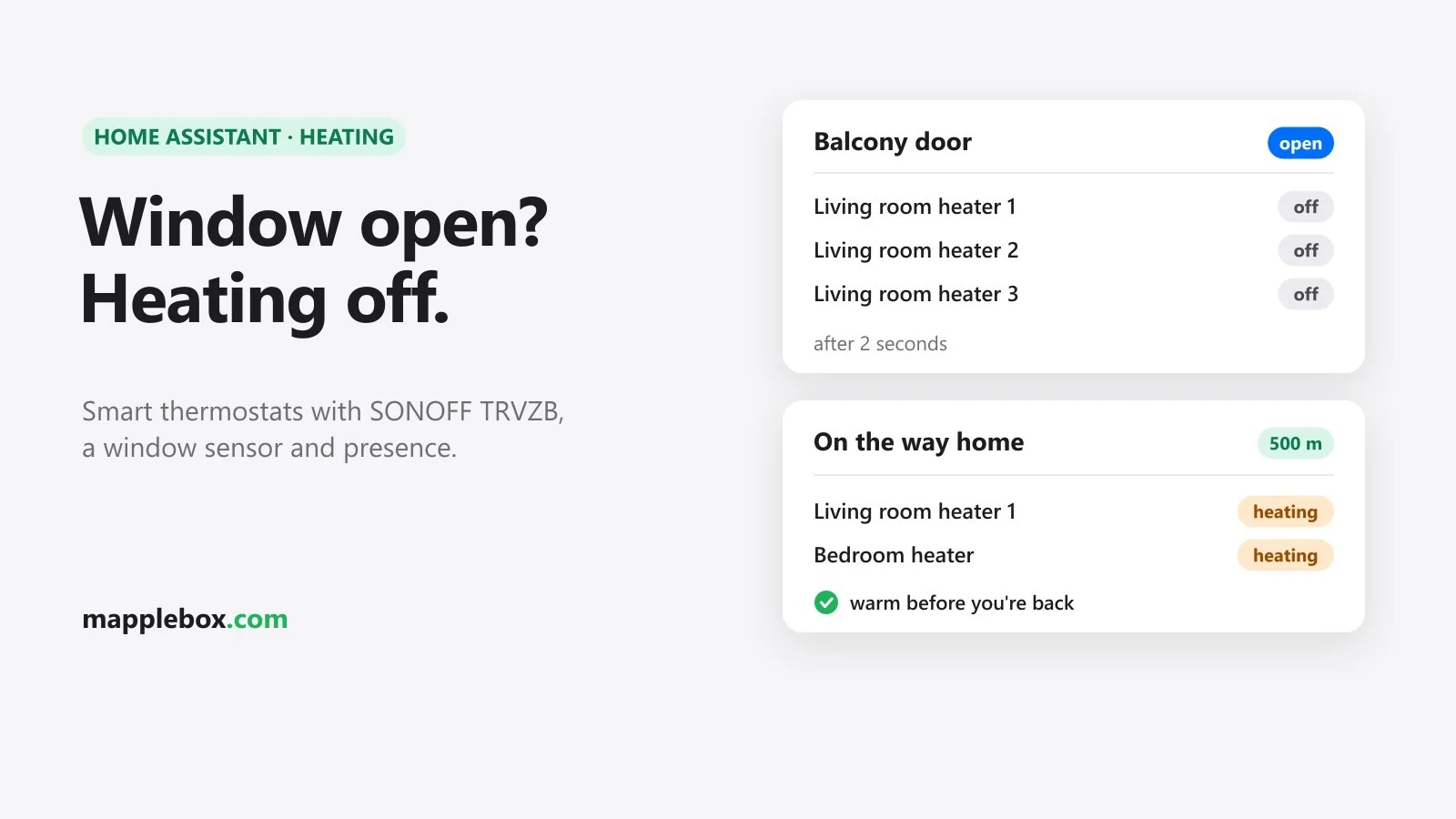
- A window or balcony door opens: the thermostats in that room turn off. It closes: they come back exactly the way they were.
- You leave the 500 m zone: all heaters turn off. You come back into the zone: they turn on and warm up the place while you’re still on your way.
- A thermostat turns on while nobody is home: it gets switched off again and you get a push notification.
- At night the bedroom only heats to 17 °C instead of 19 °C.
- A window has been open for 15 minutes and it’s cold outside: you get a push.
- In vacation mode every heater holds just 8 °C as frost protection.
This exact setup runs in my apartment in Berlin with four TRVZBs: three in the living room and one in the bedroom. The examples below use the same layout, so just adapt them to your rooms.
What you need
- Thermostats: one SONOFF TRVZB* per radiator. For several rooms the SONOFF TRVZB 4 pack* is worth it. The TRVZB fits valves with an M30 x 1.5 mm thread directly, which is the standard on most European radiators. For other valves, SONOFF says the box includes adapters that work with most heating systems. You also need 3 AA batteries per thermostat (alkaline, not included).
- Zigbee coordinator: any coordinator that ZHA or Zigbee2MQTT supports. I use the SONOFF Dongle Max* (model name Dongle-M). It connects to your network over Ethernet (with PoE) or Wi-Fi instead of a USB port, so you can place it somewhere central in your home. A USB stick like the SONOFF Zigbee 3.0 USB Dongle Plus* is cheaper and works just as well to start with. SONOFF recommends the ZBDongle-P, ZBDongle-E and Dongle-M, among others, for the TRVZB.
- Home Assistant: a running install. If you don’t have one yet, my guide Home Assistant on Proxmox walks you through it, including how to pass a USB stick through to the VM.
- Window and door sensors: any kind, as long as Home Assistant sees them as open or closed. I use IKEA MYGGBETT sensors. They use Thread and run through Matter, so you need a Thread border router such as a HomePod mini, an Apple TV 4K with Thread or the IKEA DIRIGERA hub. If you already run Zigbee, a Zigbee contact sensor like the SONOFF SNZB-04P* is simpler. The automations work the same with both.
- A phone with the Home Assistant app: with location access set to “Always”, so Home Assistant knows where you are. Under Settings > People you link your person to your phone.
Step 1: Mount the TRVZB on the valve
Unscrew the old thermostat head counterclockwise. Underneath is the valve with a small pin in the middle. If the valve has an M30 x 1.5 mm outer thread, screw the TRVZB straight on. For clamp-style valves, for example from Danfoss, fit the matching adapter first. SONOFF’s compatibility list (PDF) tells you which adapter goes with which valve.
- Open it up: press the latch on the battery compartment and pull the cover off. Put in the 3 AA batteries.
- Wait: an icon flashes on the display. Only once it stops flashing do you screw the thermostat onto the valve (hand-tight is enough).
- Calibrate: briefly press the middle button. “Ad” flashes on the display. After about 5 seconds the thermostat shows its start screen. It has now learned the valve travel, meaning how far it needs to push the pin.
If the display doesn’t show a temperature afterwards, calibration failed. That usually means the thermostat isn’t seated properly. Unscrew it, check the adapter and repeat the steps.
Step 2: Pair the thermostat in ZHA
If ZHA isn’t set up yet: under Settings > Devices & services, Home Assistant usually detects a plugged-in USB stick and suggests ZHA. For network coordinators like the Dongle Max, you enter the network address manually while setting up ZHA. The dongle’s web interface shows you that address.
- Go to Settings > Devices & services > Zigbee Home Automation and click Add device.
- On the thermostat: pairing only works in manual mode, so with no auto icon on the display (a short press on the middle button switches between auto and manual). Turn the knob counterclockwise until “OF” appears. Then hold the middle button for 3 seconds until the network icon flashes. The thermostat stays in pairing mode for 3 minutes.
- ZHA finds the device after a few seconds. Give it a clear name like “Living room heater 1” right away and assign the area. The thermostat entity will then be called something like
climate.living_room_heater_1_thermostat.
Pair the thermostats where they’ll actually live. Battery devices pick a neighbor in the Zigbee network to talk through when they pair. If it doesn’t work within 3 minutes, just start pairing mode again.
Step 3: Check the entities and basic settings
In Home Assistant, an entity is a single value or control of a device. ZHA creates a whole bunch of them for each TRVZB. The important ones:
| Entity | What it’s for |
|---|---|
Thermostat (climate.) | The main one. Mode off or heat, target temperature from 4 to 35 °C. |
| Switch “Open window” | The built-in open window detection based on a temperature drop. |
| Switch “Child lock” | Locks the buttons on the device. |
| Switch “External temperature sensor” and number “External temperature sensor value” | Use a room temperature value instead of the built-in sensor. |
| Numbers for frost protection, temperature offset, min/max temperature, valve opening degree | Fine-tuning, not needed to get started. |
| Battery sensor | Battery level in percent. |
| Firmware update | Shows whether new firmware is available. |
Now set the target temperature you want on each thermostat once. Mine are all at 19 °C. The automations only switch between off and heat later, and the thermostat handles the temperature itself. So once the room is above 19 °C, the valve stays closed anyway. All temperatures in this guide are in °C. If your Home Assistant is set to Fahrenheit, convert the numbers in the YAML: 19 °C is about 66 °F, 17 °C about 63 °F, 15 °C 59 °F and 8 °C about 46 °F.
Built-in window detection or real sensors?
The TRVZB can detect an open window by itself. According to the manual, the temperature has to drop by more than 1.5 °C within 4.5 minutes. Then it sets itself to 12 °C. After 30 minutes without any interaction, the mode ends again, even if the window is still open. That’s better than nothing, but it’s slow and unreliable, especially when the radiator isn’t right below the window. A real window sensor knows instantly and for sure when the window opens and closes. Germany’s consumer advice center (Verbraucherzentrale) agrees: thermostats paired with a separate window contact are more flexible than detection based on temperature.
That’s why the “Open window” switch is off on all four of my thermostats, so two systems don’t get in each other’s way. The automation in step 5 does the job instead.
Optional: external temperature sensor
The thermostat measures right next to the warm radiator, so it often reads a bit higher than what you feel in the room. For a simple correction, set the “Local temperature offset”, for example to -1 °C. If you want it more precise, turn on “External temperature sensor” and use your own automation to regularly write a room sensor’s value into “External temperature sensor value”. I don’t use either, and you don’t need them to get started.
Step 4: Create the helpers and the zone
Before the automations, create three things they depend on. Do this first, otherwise the conditions point at nothing.
Window group: under Settings > Devices & services > Helpers > Create helper > Group > Binary sensor group, name the group “Living room windows” and select every window and door sensor in the room. Leave “All entities” turned off. That way the group is open as soon as any window is open. In my case that’s two windows and the balcony door. You end up with binary_sensor.living_room_windows.
Vacation mode: in the same place, create a Toggle helper named “Vacation mode”. That gives you input_boolean.vacation_mode.
“Near home” zone: under Settings > Areas, labels & zones > Zones, click Add zone, name it “Near home”, drag the pin onto your home and set the radius to 500 m. My home zone is 100 m with the same center. You change its radius in the same list with the pencil icon. When you’re inside both zones, Home Assistant picks the smaller one. So within 100 m you’re home, and in the ring out to 500 m you’re Near home. Important: your person’s state is the zone’s name. If you name it differently, replace “Near home” in every YAML below with your name.
Step 5: Turn the heating off when a window opens
Here’s how you add every automation in this guide: Settings > Automations & scenes > Create automation > Create new automation, then the three dots in the top right, Edit in YAML, replace everything and save. Swap the entity IDs for your own first. The examples use short names like climate.living_room_heater_1, and you’ll find your real IDs on the device page in ZHA.
alias: Living room heaters off when window open
description: Snapshots the thermostats, turns them off and restores them once everything is closed.
mode: single
max_exceeded: silent
variables:
  home_at_open: "{{ states('person.you') in ['home', 'Near home'] }}"
triggers:
  - trigger: state
    entity_id: binary_sensor.living_room_windows
    from: "off"
    to: "on"
actions:
  - action: scene.create
    data:
      scene_id: living_room_heaters_before_window
      snapshot_entities:
        - climate.living_room_heater_1
        - climate.living_room_heater_2
        - climate.living_room_heater_3
  - action: climate.turn_off
    target:
      entity_id:
        - climate.living_room_heater_1
        - climate.living_room_heater_2
        - climate.living_room_heater_3
  - wait_for_trigger:
      - trigger: state
        entity_id: binary_sensor.living_room_windows
        to: "off"
  - choose:
      - conditions:
          - condition: not
            conditions:
              - condition: state
                entity_id: person.you
                state:
                  - home
                  - Near home
          - condition: state
            entity_id: input_boolean.vacation_mode
            state: "off"
        sequence:
          - stop: Nobody home, heaters stay off
      - conditions:
          - condition: template
            value_template: "{{ home_at_open }}"
        sequence:
          - action: scene.turn_on
            target:
              entity_id: scene.living_room_heaters_before_window
    default:
      - action: climate.set_hvac_mode
        target:
          entity_id:
            - climate.living_room_heater_1
            - climate.living_room_heater_2
            - climate.living_room_heater_3
        data:
          hvac_mode: heat
What happens here, step by step:
- variables: right when it triggers, the automation remembers whether you were home when the window opened. That value doesn’t change afterwards, even if you leave in the meantime.
- scene.create: the snapshot saves how the three thermostats are set right now. If one was already off, it stays off after the window closes.
- wait_for_trigger: the automation waits until the group is closed again, meaning every window is shut. That can take two minutes or two hours.
- choose: if you’re not home when it closes (and not in vacation mode), the heating stays off and presence takes over. If you were home when it opened, the snapshot comes back. Otherwise, for example if you came home while the window was open, the thermostats go to heat.
- mode: single with max_exceeded: silent: if a second window opens while the automation is still waiting, it doesn’t start again and doesn’t write a warning to the log.
In my place this is surprisingly fast: balcony door open, and two seconds later all three living room thermostats were off. Door closed, and about a second later they were back on heat. If you have several rooms with windows, create one group and one copy of this automation per room, each with its own scene_id.
Step 6: Let the heating follow you
This automation turns every heater off as soon as you leave the 500 m zone and back on as soon as you enter it. The living room stays off when you arrive if a window there is open. The automation from step 5 takes care of it once the window closes.
alias: Heaters follow presence
description: Off when leaving the Near home zone, on when entering it.
mode: queued
triggers:
  - trigger: state
    entity_id: person.you
    id: away
    from:
      - home
      - Near home
    not_to:
      - home
      - Near home
      - unknown
      - unavailable
  - trigger: state
    entity_id: person.you
    id: arriving
    not_from:
      - home
      - Near home
      - unknown
      - unavailable
    to:
      - home
      - Near home
conditions:
  - condition: state
    entity_id: input_boolean.vacation_mode
    state: "off"
actions:
  - choose:
      - conditions:
          - condition: trigger
            id: away
        sequence:
          - action: climate.turn_off
            target:
              entity_id:
                - climate.bedroom_heater
                - climate.living_room_heater_1
                - climate.living_room_heater_2
                - climate.living_room_heater_3
      - conditions:
          - condition: trigger
            id: arriving
        sequence:
          - action: climate.set_hvac_mode
            target:
              entity_id: climate.bedroom_heater
            data:
              hvac_mode: heat
          - if:
              - condition: state
                entity_id: binary_sensor.living_room_windows
                state: "off"
            then:
              - action: climate.set_hvac_mode
                target:
                  entity_id:
                    - climate.living_room_heater_1
                    - climate.living_room_heater_2
                    - climate.living_room_heater_3
                data:
                  hvac_mode: heat
The triggers are built so that moving between home and Near home doesn’t fire anything. unknown and unavailable are excluded too. Those show up briefly when Home Assistant restarts, and they shouldn’t switch your heating off.
Thanks to the big zone, the heating starts a few minutes before you get home. Here’s what it looked like for me last time: I entered the 500 m zone, one second later every heater was set to heat, roughly six minutes before I walked through the door. If you usually come home by car, use a bigger radius.
Step 7: A guard in case a heater turns on anyway
Sometimes someone turns the knob, a schedule in the manufacturer’s app kicks in, or you tap the dashboard by accident. This automation catches that: if a thermostat switches to heat while you’re away, it turns it off and sends you a push notification through the Home Assistant app.
alias: Heater on while away
description: Turns the heater back off and sends a push.
mode: parallel
triggers:
  - trigger: state
    entity_id:
      - climate.bedroom_heater
      - climate.living_room_heater_1
      - climate.living_room_heater_2
      - climate.living_room_heater_3
    to: heat
conditions:
  - condition: not
    conditions:
      - condition: state
        entity_id: person.you
        state:
          - home
          - Near home
  - condition: state
    entity_id: input_boolean.vacation_mode
    state: "off"
actions:
  - action: climate.turn_off
    target:
      entity_id: "{{ trigger.entity_id }}"
  - action: notify.mobile_app_your_iphone
    data:
      title: Heater turned off
      message: "{{ trigger.to_state.name }} switched on while nobody was home. It's off again."
To find the name of your notify service, go to Developer tools > Actions and type “notify.mobile_app”. Keep in mind: the guard also turns the heating off if you switch it on from the road on purpose. If you want that now and then, turn the guard off for a bit or use vacation mode.
Step 8: Night setback in the bedroom
Under Helpers > Create helper > Schedule, create a schedule called “Bedroom night setback” and drag the times into the weekly plan. Mine runs from 00:00 to 08:00 on weekdays and 00:00 to 09:00 on weekends. The schedule is on while a block is running.
alias: Bedroom night setback
description: 17 °C during the schedule, 19 °C after.
mode: restart
triggers:
  - trigger: state
    entity_id: schedule.bedroom_night_setback
    id: night
    to: "on"
  - trigger: state
    entity_id: schedule.bedroom_night_setback
    id: day
    to: "off"
conditions:
  - condition: state
    entity_id: input_boolean.vacation_mode
    state: "off"
actions:
  - choose:
      - conditions:
          - condition: trigger
            id: night
        sequence:
          - action: climate.set_temperature
            target:
              entity_id: climate.bedroom_heater
            data:
              temperature: 17
      - conditions:
          - condition: trigger
            id: day
        sequence:
          - action: climate.set_temperature
            target:
              entity_id: climate.bedroom_heater
            data:
              temperature: 19
This automation only changes the target temperature, not the mode. If the heater is off because you’re away, it stays off and heats to the right value as soon as you come home.
Step 9: A push when the window is open too long
This automation pings you when the window group has been open for 15 minutes and it’s below 15 °C outside. The outside temperature comes from the weather entity Home Assistant creates during setup (usually weather.forecast_home). To see what yours is called, search for “weather” under Settings > Devices & services > Entities.
alias: Living room window open too long
description: Push after 15 minutes open while it's below 15 °C outside.
mode: single
triggers:
  - trigger: state
    entity_id: binary_sensor.living_room_windows
    to: "on"
    for:
      minutes: 15
conditions:
  - condition: template
    value_template: >-
      {% set t = state_attr('weather.forecast_home', 'temperature') %}
      {{ t is none or t | float(99) < 15 }}
actions:
  - action: notify.mobile_app_your_iphone
    data:
      title: Window still open
      message: >-
        {% set t = state_attr('weather.forecast_home', 'temperature') %}
        The living room has been open for 15 minutes{{ " and it's " ~ t ~ '° outside' if t is not none else '' }}.
The condition still lets the push through when the weather entity has no temperature at that moment. A plain temperature condition would simply be false then, and you’d get nothing. That happened to me: the weather service was gone for two hours, and the reminder never came. On a Fahrenheit setup, change < 15 to < 59.
In my place, my AI assistant also mentions it when a window is still open. The actual work is done by this plain automation, though, and it runs fine without any assistant.
Step 10: Vacation mode
When you’re gone for longer, you don’t want the place to get ice cold. In vacation mode every thermostat is set to heat at 8 °C. The other automations already have vacation mode as a condition and stay quiet. When you turn it off, the temperatures go back to 19 °C (bedroom 17 °C if it’s night). If you’re still away at that point, everything turns off and presence takes over again.
alias: Vacation mode heaters
description: On = 8 °C frost protection, off = back to normal.
mode: restart
triggers:
  - trigger: state
    entity_id: input_boolean.vacation_mode
    id: "on"
    to: "on"
  - trigger: state
    entity_id: input_boolean.vacation_mode
    id: "off"
    to: "off"
actions:
  - choose:
      - conditions:
          - condition: trigger
            id: "on"
        sequence:
          - action: climate.set_temperature
            target:
              entity_id:
                - climate.bedroom_heater
                - climate.living_room_heater_1
                - climate.living_room_heater_2
                - climate.living_room_heater_3
            data:
              temperature: 8
          - action: climate.set_hvac_mode
            target:
              entity_id: climate.bedroom_heater
            data:
              hvac_mode: heat
          - if:
              - condition: state
                entity_id: binary_sensor.living_room_windows
                state: "off"
            then:
              - action: climate.set_hvac_mode
                target:
                  entity_id:
                    - climate.living_room_heater_1
                    - climate.living_room_heater_2
                    - climate.living_room_heater_3
                data:
                  hvac_mode: heat
      - conditions:
          - condition: trigger
            id: "off"
        sequence:
          - action: climate.set_temperature
            target:
              entity_id:
                - climate.living_room_heater_1
                - climate.living_room_heater_2
                - climate.living_room_heater_3
            data:
              temperature: 19
          - if:
              - condition: state
                entity_id: schedule.bedroom_night_setback
                state: "on"
            then:
              - action: climate.set_temperature
                target:
                  entity_id: climate.bedroom_heater
                data:
                  temperature: 17
            else:
              - action: climate.set_temperature
                target:
                  entity_id: climate.bedroom_heater
                data:
                  temperature: 19
          - if:
              - condition: not
                conditions:
                  - condition: state
                    entity_id: person.you
                    state:
                      - home
                      - Near home
            then:
              - action: climate.turn_off
                target:
                  entity_id:
                    - climate.bedroom_heater
                    - climate.living_room_heater_1
                    - climate.living_room_heater_2
                    - climate.living_room_heater_3
If you come back from vacation and the mode is still on, the place is only at 8 °C. So turn it off on your way home. If you’re already inside the 500 m zone by then, the heaters stay on and go to 19 °C.
How to test it
- Open a window and watch the thermostat card on your dashboard. After a few seconds it should switch to off.
- Close the window. The thermostats should go back to heat, with the same target temperature as before.
- Open History in the sidebar and pick the window group and the thermostats. You’ll see to the second when what happened.
- If something didn’t work, open the automation and click Traces in the three-dot menu in the top right. The trace shows you step by step which branch of the
chooseran and why. - The easiest way to test presence is a real walk. Your person’s history shows when you left and entered each zone.
Troubleshooting
- The thermostat reacts with a delay: battery devices in a Zigbee network sleep in between to save power. A few seconds of delay is normal. For me it’s usually one to two seconds.
- The thermostat is often “unavailable”: check LQI and RSSI on the device page in ZHA, those are signal quality values. If they’re low, you’re missing a Zigbee router nearby. A Zigbee smart plug between the coordinator and the radiator usually fixes it. The thermostats themselves don’t relay anything.
- The valve doesn’t open properly or you see an error code: if the thermostat sits loose or crooked, the calibration is off. Unscrew it, check the adapter, mount it again and start calibration with a short press on the middle button.
- Battery: SONOFF says normal alkaline batteries last more than six months and advises against rechargeables. When the battery icon shows on the display, the manual says to replace them within a week. A battery alert automation on the battery sensor saves you surprises.
- Firmware: ZHA shows updates for the thermostats under Settings > Updates when there are any. All four of mine run firmware 0x00001404. Leave the thermostat alone during an update, it takes a while on battery devices.
- Heating stays off after a restart: if Home Assistant restarts while a window is open, the waiting automation is cancelled and the snapshot is gone. The heating then stays off after the window closes. In that case turn it on by hand once. Otherwise presence takes care of it the next time you come home.
- Presence doesn’t switch: check in the phone app that location access is set to “Always” and background refresh is allowed. Without that, your phone reports zone changes late or not at all.
How much does it save?
I haven’t measured it, so I won’t give you a number of my own. The reference values come from German consumer and energy advice organizations: according to the Verbraucherzentrale (in German), every degree lower room temperature saves roughly 6 % energy, and you should close the valve completely while airing out. co2online (in German) estimates that programmable thermostats save about ten percent of heating costs on average. How much you actually save depends a lot on your building, your heating system and how you heated before. If you always remembered to turn the heating down, you’ll save less than someone who regularly forgets.
Wrap-up
With four thermostats, a few window sensors and six automations, the heating now thinks for itself: off while you air out, off when you leave, warm when you get home. The best part: you don’t have to think about it anymore, and the thermostats keep regulating the temperature as usual. If you’re just getting started with Home Assistant and your own server, check out my homelab beginner guide next.
* Affiliate link: As an Amazon Associate I earn from qualifying purchases. It costs you nothing extra. More info
Did this guide help you? You can buy me a coffee on Ko-fi. It keeps MappleBox ad-free.