PHP security update October 2026: how to check your version and update
Commented PHP under my video? This is the checklist I promised. On October 21, 2026, the PHP team shipped a critical security update. It fixes two bugs that let an attacker run their own code on your web server without logging in. Pretty much every site that runs on PHP is affected, and that includes every WordPress site. Go through the steps below to find out which PHP version you’re on and how to get the update onto the most common setups. I updated my own web server exactly this way.
Quick summary
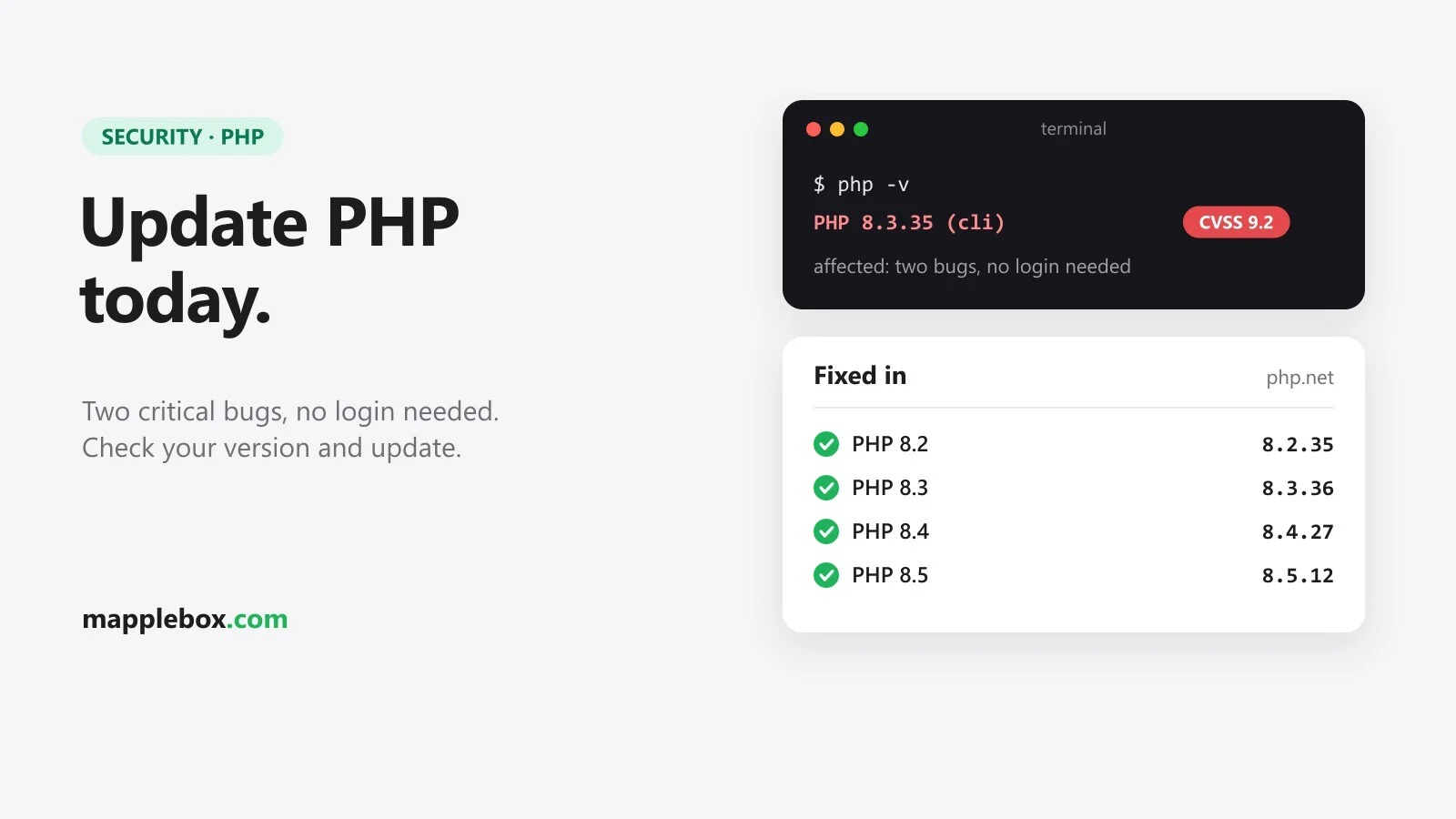
- There are two bugs, CVE-2026-109618 and CVE-2026-109619. The PHP team rates both 9.2 out of 10 (CVSS v4.0, a standard severity scale).
- They’re fixed in PHP 8.5.12, 8.4.27, 8.3.36 and 8.2.35. Anything older is affected, whether you run PHP-FPM, Apache with mod_php or another setup.
- PHP says the risk is highest with Apache and mod_php, where an exploit (working attack code) has already been demonstrated.
- PHP 8.1 and older no longer get updates from the PHP project. PHP 8.2 reaches end of life on December 31, 2026.
What you need
- An admin login for WordPress or for your hosting panel.
- On your own server: a terminal over SSH (an encrypted remote command line) and sudo rights.
- A fresh backup before you update anything.
Step 1: Find your PHP version
WordPress makes this easy. Go to Tools → Site Health, open the Info tab at the top and expand the Server section. The PHP version is listed there. On shared hosting (you share a server with other customers and only get a web panel), your host’s control panel shows the version too.
On your own server, use the terminal:
php -v
php-fpm8.3 -v
php -v only shows the command-line version. Your sites usually run through PHP-FPM (the service that runs PHP for the web server), which is a separate package. On Debian and Ubuntu the command is php-fpm8.3 with your version number (ls /usr/sbin/php-fpm* shows which one you have), on RHEL and AlmaLinux it’s just php-fpm -v. A phpinfo() file shows it as well, but delete it right after, since it tells strangers a lot about your server.
Step 2: Update
Debian and Ubuntu with the distro’s own packages: the security teams add the fix to their own version (that’s called a backport). So the version number can look older than the one on php.net even though the hole is closed. Don’t compare against php.net. Look up the two CVE numbers in the Debian Security Tracker or Ubuntu’s CVE database instead, or read the package changelog. The second command below searches it for exactly that. If a line with one of the two CVE numbers shows up, the fix is in. The update itself:
sudo apt update && sudo apt upgrade
apt changelog php8.3-fpm | grep -E 'CVE-2026-10961(8|9)'
Debian and Ubuntu with Ondřej Surý’s repository (packages.sury.org or the ondrej/php PPA, popular for newer PHP versions): here the numbers follow php.net. After apt upgrade you should see 8.3.36 or the matching number for your branch.
RHEL and AlmaLinux: with the distro’s PHP packages it works like Debian, through sudo dnf upgrade and backports. If you use the Remi repository (rpms.remirepo.net), read carefully. The PHP team wrote that Remi would not have updates on release day and recommends switching to distro packages or building from source. Check with php-fpm -v that the new number actually arrived.
Docker with the official php images: a tag like 8.3-fpm points to the new version once the official image has been rebuilt If you use the image directly, run docker compose pull and then docker compose up -d. If you have your own Dockerfile with FROM php:…, rebuild with docker compose build --pull and start with docker compose up -d. Then check inside the container with docker compose exec app php -v (replace app with the name of your PHP service).
Shared hosting and managed WordPress: your host installs the update. Check the exact version in the panel or ask support whether the October 21 fixes are in.
Plesk: under Tools & Settings → Updates you open the Plesk Installer and update the installed components, which include Plesk’s PHP versions. On a dnf-based server this can currently fail with “GPG check FAILED”. See common problems below.
Step 3: Restart and check
A new version on disk does nothing while the old PHP processes keep running. Restart PHP-FPM, or Apache if you use mod_php:
sudo systemctl restart php8.3-fpm   # Debian/Ubuntu, adjust the number
sudo systemctl restart php-fpm      # RHEL/AlmaLinux
sudo systemctl restart apache2      # mod_php on Debian/Ubuntu (RHEL: httpd)
sudo systemctl restart 'plesk-php*-fpm*'   # Plesk on Linux
Then check the version again as in step 1. Site Health in WordPress is the best place, because it shows what the site is really using. Open your sites in a browser and click around for a minute.
If you’re on PHP 8.1 or older
The PHP project has no update for 8.1 and older. Some distros and LTS vendors ship backports, so ask your vendor first. The clean fix is moving to a supported version, ideally 8.3 or newer, since 8.2 runs out at the end of 2026. Make a backup first, test on a staging copy (a test copy of your site) and update your theme and plugins before switching.
The stopgaps in the advisory, like memory_limit=-1 or session.upload_progress.enabled=0, only shrink specific attack paths. PHP says they don’t make an installation safe. Use them at most to bridge the hours until you can update.
How it went on my server
My web server runs about 30 websites on PHP 8.2 and 8.3, managed with Plesk. Automatic updates were on, and still nothing had been updated. My first attempt failed with the GPG error, because Plesk now signs its packages with a new key. Once I imported the official key it went through: 8.2.34 to 8.2.35 and 8.3.35 to 8.3.36. The sites were back within seconds, and I opened every one of them afterwards. Having auto-update switched on doesn’t mean you’re actually up to date.
Common problems
“GPG check FAILED” on Plesk with dnf: dnf doesn’t know the key the new Plesk packages are signed with (the signature proves a package really comes from Plesk). I couldn’t find an official announcement from Plesk about it, so this is what I did. Plesk publishes all its keys in a file called plesk.gpg. I looked at the file first, checked that the new key with ID 5B6AB2160B50DB96, dated August 18, 2026, is in there as “Plesk Team”, and only then imported it:
curl -s https://autoinstall.plesk.com/plesk.gpg | gpg --show-keys
sudo rpm --import https://autoinstall.plesk.com/plesk.gpg
The first command only displays the keys and changes nothing. The new key’s fingerprint has to end in 5B6AB2160B50DB96. If it doesn’t, don’t import anything and ask Plesk support. After the import, just run the update again.
The version is still old after updating: usually the old PHP-FPM process is still running, so restart it as in step 3. With Debian and Ubuntu distro packages the number can also look old and still be fine. In that case the security tracker entry is what counts.
Wrapping up
Check the version, update, restart PHP-FPM or Apache, check the version again and open your sites. Running a Plex server too? Then have a look at my Plex2Shell checklist. New guides and security heads-ups like this one go out through my newsletter.
Did this guide help you? You can buy me a coffee on Ko-fi. It keeps MappleBox ad-free.