Back up your Android handheld’s game saves to your NAS automatically (Syncthing)
A corrupted save hurts more than a lost game. You can dump the game again, meaning read it off your own cartridge one more time. Your progress is gone. That happened to me with a Pokémon save on my Android handheld: 5 of the 14 sections in the save file were broken. The only thing that saved me was a backup that happened to still be sitting on my 3DS. Since then my handheld backs up every save to my NAS automatically, with a full year of versions. In this guide you set up the same thing with Syncthing, built so the backup can never overwrite anything on your handheld.
Quick explainer
- Syncthing: a free, open-source tool that keeps folders in sync directly between your devices. No cloud involved, and the data travels encrypted from device to device.
- Send Only and Receive Only: two folder modes. The handheld only sends (Send Only) and never accepts changes. The server only receives (Receive Only). Data flows in exactly one direction.
- Versioning: before Syncthing replaces or deletes a file on the server, it moves the old copy into a hidden
.stversionsfolder. If a broken save arrives, the good one from before is still there. - The Android/data lock: since Android 11, no app may look inside another app’s private folder under
Android/data, Syncthing included. Emulators that save there need to be switched to a different folder. - Who it’s for: you have an Android handheld like the AYN Thor*, a Retroid Pocket* or an AYN Odin*, plus a NAS or home server that runs Docker.
How the setup works
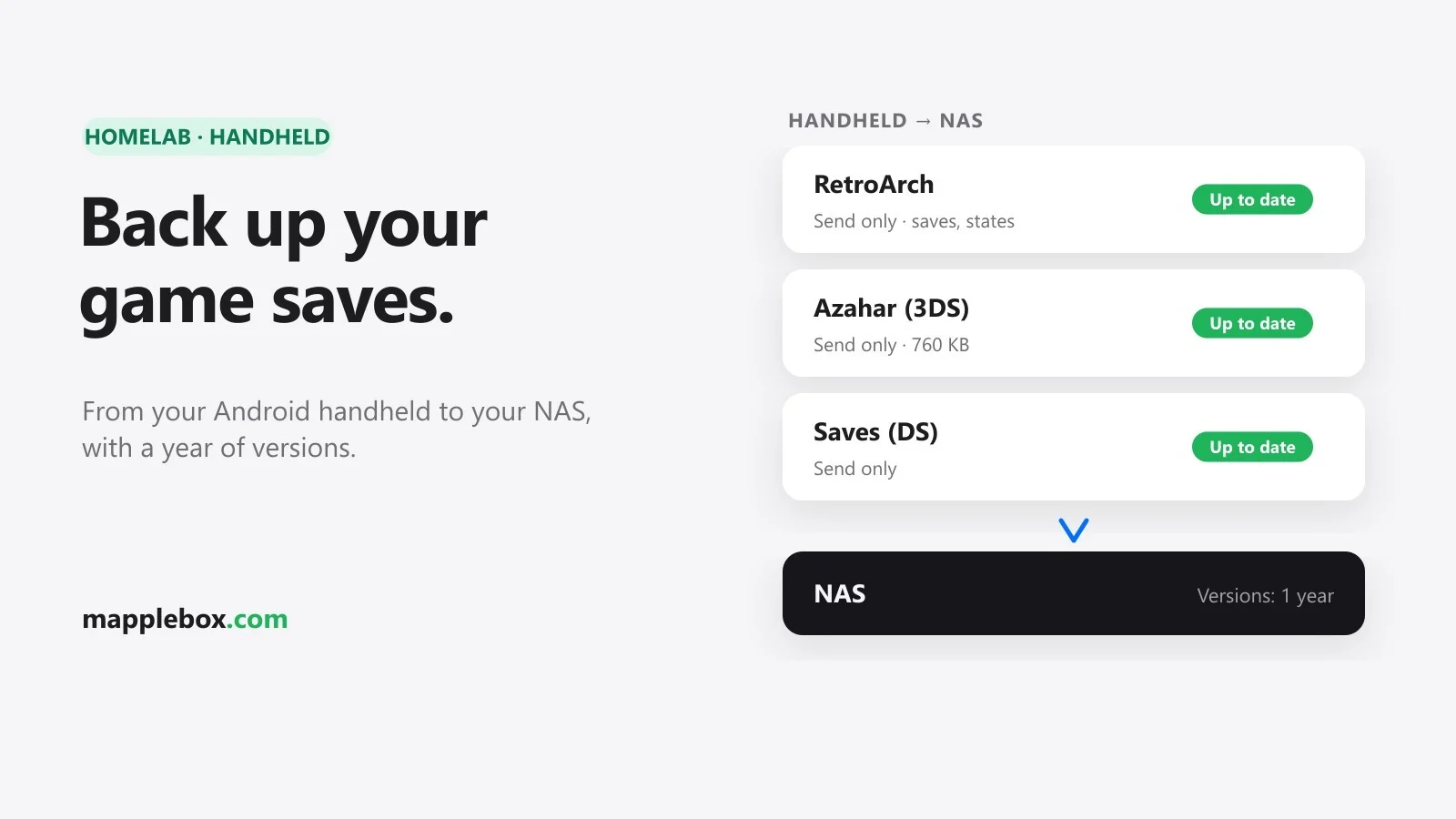
On the handheld you create three Send Only folders. On the server they land as Receive Only folders inside their own backup folder. My example is an AYN Thor on Android 13. The idea is the same on any Android handheld.
| Folder on the handheld (Send Only) | Folder on the NAS (Receive Only) | What gets backed up |
|---|---|---|
/sdcard/RetroArch | Backups/handheld-saves/RetroArch | only saves/ and states/ |
/sdcard/Azahar | Backups/handheld-saves/Azahar | everything except installed games, logs, shaders, cheats and GPU drivers |
/sdcard/Saves | Backups/handheld-saves/Saves | everything (shared folder for other emulators) |
/sdcard is the internal storage you also see in a file manager. If you use emulators other than RetroArch or Azahar, just adapt the table to your folders.
Already running RomM for your game library? No clash. RomM only stores saves from its own in-browser player, in its assets folder. Syncthing writes to a completely separate backup folder. And because the handheld only sends, nothing on that side can ever overwrite a save on the handheld. On my server, Syncthing runs as a small container right next to RomM on a Minisforum MS-A2*, and the backups land on a UniFi UNAS Pro*. You don’t need RomM for this guide, though.
What you need
- An Android handheld on Android 11 or newer (tested on an AYN Thor with Android 13)
- A NAS or home server with Docker and the Compose plugin. Docker runs programs in isolated containers, and Compose describes a container in a small text file.
docker compose versionshould print a version. - A folder on the NAS for the backups. If Docker runs on a separate server, mount the NAS share there (for example over SMB or NFS under
/mnt/nas). If Docker runs on the NAS itself, use the folder’s local path, for example/volume1/...on a Synology*. - Terminal access to the server over SSH (or a Docker web UI like Portainer, see step 1)
- Handheld and server on the same home network for the setup
- A file manager on the handheld that can show hidden files and edit text files, for example Material Files
- Optional: a PC with ADB (Android Debug Bridge, the command-line tool for controlling an Android device over USB). ADB comes with Google’s Platform Tools. On the handheld, turn on USB debugging: in Settings under “About device”, tap the build number seven times, then enable “USB debugging” in Developer options. You only need ADB for the command-line options.
Commands and settings in this guide refer to Syncthing 2.1 and Syncthing-Fork 2.1, the current versions at the time of writing.
Step 1: Syncthing on the server with Docker Compose
Create a folder for the configuration on the server. It belongs on the server’s local disk, not on the network share. Syncthing keeps its database there, and databases on SMB or NFS are a well-known source of trouble. All paths below are examples. Replace /mnt/nas/Backups everywhere with the path to your backup folder.
sudo mkdir -p /opt/syncthing/data
sudo mkdir -p /mnt/nas/Backups/handheld-saves
cd /opt/syncthing
sudo nano docker-compose.yml
Put this into docker-compose.yml:
services:
  syncthing:
    image: syncthing/syncthing:2
    container_name: syncthing
    hostname: nas-syncthing
    environment:
      - PUID=1000
      - PGID=1000
      - STGUIADDRESS=127.0.0.1:8384
    volumes:
      - /opt/syncthing/data:/var/syncthing
      - /mnt/nas/Backups/handheld-saves:/backups
    network_mode: host
    restart: unless-stopped
In nano, save and close with Ctrl+O, Enter and Ctrl+X. What each part does:
syncthing/syncthingis the official image from the Syncthing project. The2tag stays on major version 2 and still gets you bug fixes.PUIDandPGIDare the user and group IDs Syncthing runs as inside the container. The default is 1000. Syncthing needs write access to the backup folder. How to set that up comes right after this list.network_mode: hostis what the official docs recommend. On Docker’s default network, Syncthing only sees an internal container address and has a harder time finding your handheld on the LAN. In host mode, Syncthing uses the server’s ports directly:22000/tcpand22000/udpfor transfers,21027/udpfor finding devices on the LAN.STGUIADDRESS=127.0.0.1:8384binds the web UI to the server itself. Nobody on the network can reach it, and you never need to open port 8384./var/syncthingis the home directory inside the container. Itsconfigsubfolder holds the configuration and the database, which is why it points to the local disk./backupsis the target on the NAS. Inside the container the folder is simply called/backups. You’ll need that in step 3.
Now the permissions on the backup folder. Check who owns it:
ls -ln /mnt/nas/BackupsThe two numbers after the permissions on the handheld-saves line are the user ID and group ID. If it says 0 0, root owns the folder because you created it with sudo. Hand it over to the Syncthing user:
sudo chown 1000:1000 /mnt/nas/Backups/handheld-savesIf you see other numbers, for example because your NAS sets the ownership, put exactly those numbers into the Compose file as PUID and PGID. On an SMB share, the mount options uid= and gid= decide who owns the files, and chown usually doesn’t work there.
If the server runs a firewall like ufw, open the three Syncthing ports for your home network. Replace 192.168.1.0/24 with your network:
sudo ufw allow from 192.168.1.0/24 to any port 22000
sudo ufw allow from 192.168.1.0/24 to any port 21027 proto udp
Start it, check the logs and test that Syncthing can write to the backup folder:
cd /opt/syncthing
sudo docker compose up -d
sudo docker compose logs -f syncthing

# Write test with the PUID/PGID from the Compose file
sudo docker exec -u 1000:1000 syncthing touch /backups/write-test
sudo docker exec -u 1000:1000 syncthing rm /backups/write-test
The logs should show a line with 127.0.0.1:8384. Ctrl+C leaves the log view, and the container keeps running. If the write test says Permission denied, PUID/PGID and the folder permissions don’t match yet.
Since the web UI only listens locally, you open it through an SSH tunnel, which forwards port 8384 from the server to your PC over your SSH connection. On your PC:
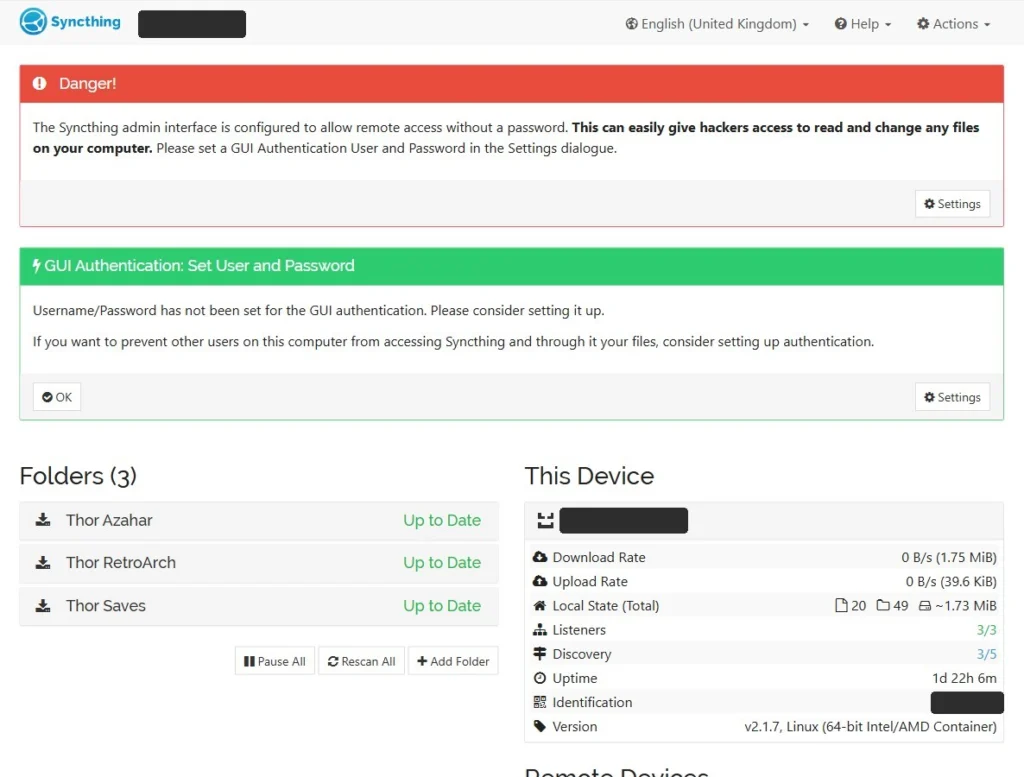
ssh -L 8384:127.0.0.1:8384 your-user@your-serverKeep that window open and go to http://localhost:8384 in your browser. On first start Syncthing warns you that no password is set. Set a user and password under Actions → Settings → GUI, even though the UI is local only.
Do you manage Docker through a web UI like Portainer or Synology Container Manager instead of a terminal? Then create the Compose file there as a stack or project. For the web UI, use the server’s LAN IP (its address on your home network) instead of 127.0.0.1, for example STGUIADDRESS=192.168.1.10:8384. The UI is then reachable from your whole home network. In that case the password is mandatory, and you should never forward that port to the internet.
Step 2: Syncthing-Fork on the handheld
The official Syncthing app for Android was discontinued in 2024. The successor most people use is called Syncthing-Fork. The project has since changed maintainers, and development continues under researchxxl/syncthing-android on GitHub. You can get it here:
- from F-Droid (package name
com.github.catfriend1.syncthingfork) - as an APK from the GitHub releases, same package name. Obtainium (an app that pulls updates straight from GitHub) can track those releases for you.
Syncthing-Fork is on the Google Play Store too, but under the older package name com.github.catfriend1.syncthingandroid. The ADB commands below use the F-Droid and GitHub name. If you installed the app from Google Play, swap in that package name. Because the package names differ, switching between sources means a fresh install.
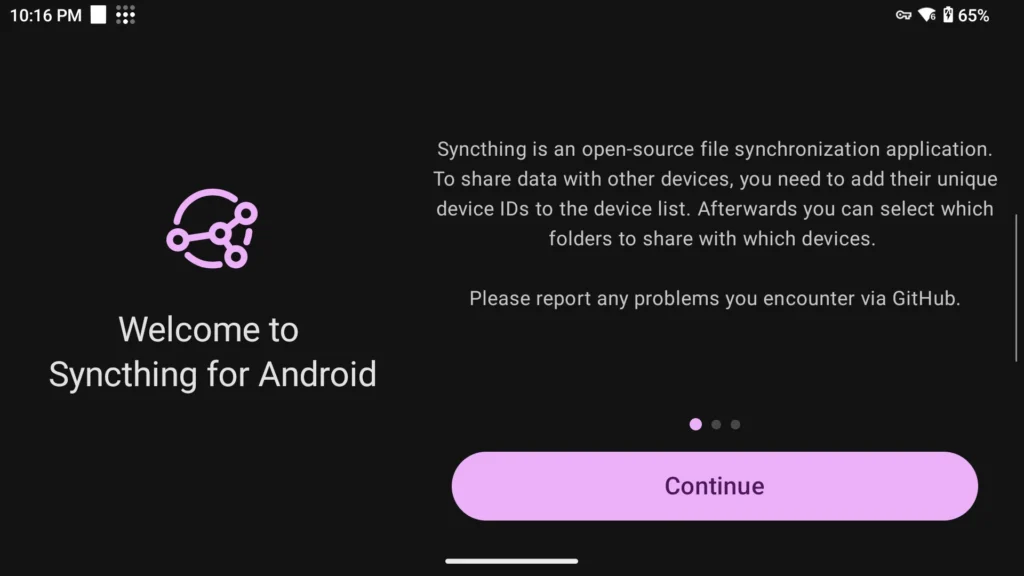
On first launch Syncthing-Fork asks for a few permissions. Two of them really matter.
All files access
Without this permission Syncthing can’t see your emulator folders. Tap Grant storage permission in the setup screen. Android opens the system page where you switch on “Allow access to manage all files” for Syncthing-Fork. Later you’ll find the toggle in Android’s settings under Apps, in the special app access section. The exact menu names depend on the manufacturer.
If the toggle doesn’t work, you can grant it with ADB from your PC:
adb shell appops set --uid com.github.catfriend1.syncthingfork MANAGE_EXTERNAL_STORAGE allow
adb shell appops get --uid com.github.catfriend1.syncthingfork MANAGE_EXTERNAL_STORAGE
The output of the second command should say allow. If you’re not sure which package name your app has, check it first with adb shell pm list packages | grep -i sync.
Turn off battery optimization
Android likes to kill background apps to save battery. Then Syncthing just quietly stops syncing at some point. The setup screen has a Battery Optimization page for this, so exempt Syncthing-Fork there. You can skip the location permission. It’s only needed if you want Syncthing to run on specific Wi-Fi networks only.
Step 3: Pair the devices and create the folders
Pair handheld and server
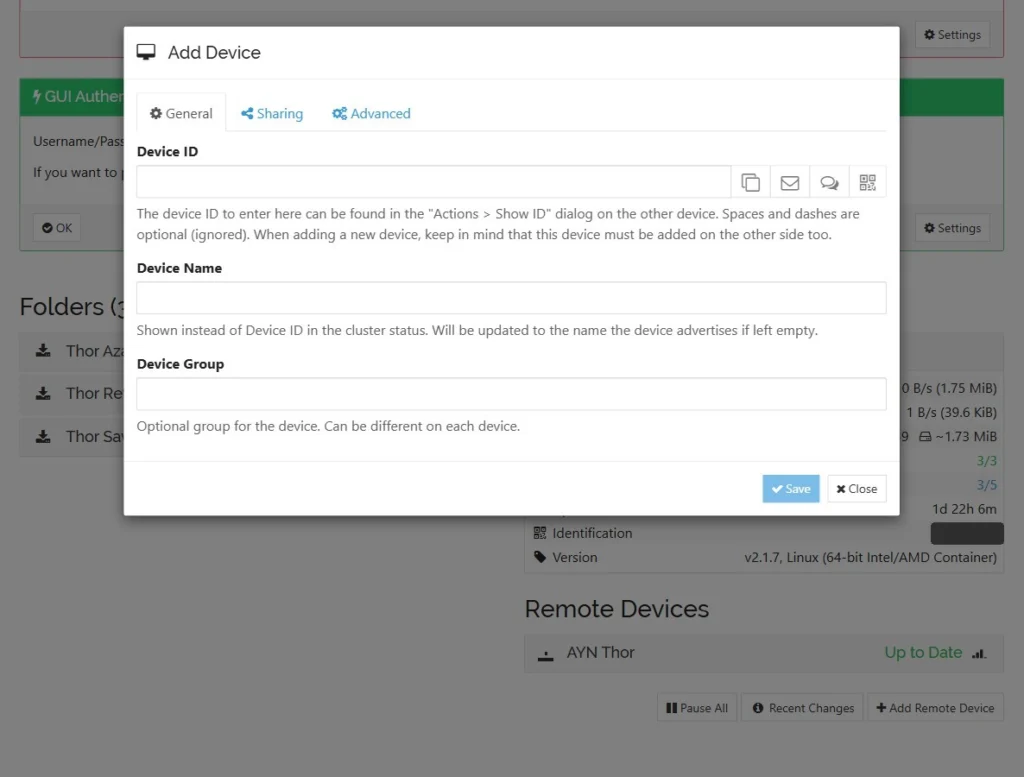
- In the server’s web UI: Actions → Show ID. You’ll see the device ID as text and as a QR code. The device ID is the unique name of a Syncthing device.
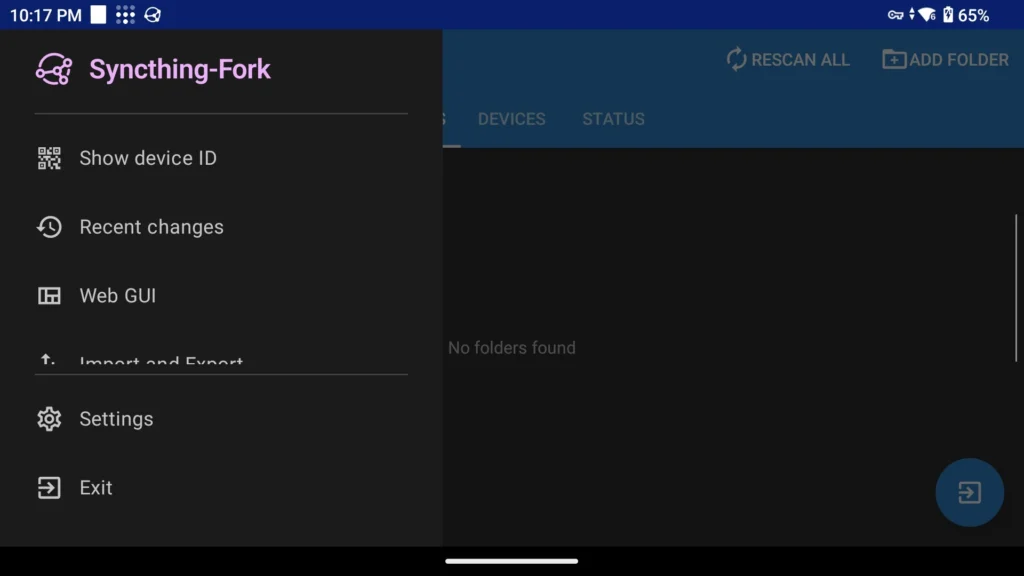
- In Syncthing-Fork on the handheld: Devices tab, then + (Add Device). Scan the QR code or type in the ID, and give the device a name like “NAS”.
- After a few seconds the server’s web UI says a new device wants to connect. Click Add Device and save.
If the two don’t find each other, enter the server’s address by hand. In Syncthing-Fork, open the device and replace dynamic under Addresses with tcp://192.168.1.10:22000, using your server’s LAN IP.
Ignore rules first, then sync
Ignore rules tell Syncthing which files to skip. They live in a text file called .stignore inside each folder. Next to the saves, the Azahar folder also contains installed 3DS games, which came to 1.9 GB on mine. If Syncthing starts sending before the rules are in place, all of that ends up on the NAS. You’ll find the rules for each folder further down. Get them in place in one of two ways before the first sync starts.
Option A (safest): create .stignore before you add the folder. Syncthing reads an existing .stignore on the first scan and won’t overwrite it. In your file manager, create a new file called .stignore in the folder, for example /sdcard/RetroArch (with the dot at the start and no .txt), paste in the rules and save. Many file managers hide files that start with a dot, so turn on “show hidden files”. Or save the rules as a text file on your PC and push it over with ADB:
adb push stignore-retroarch.txt /sdcard/RetroArch/.stignore
adb push stignore-azahar.txt /sdcard/Azahar/.stignore
On Windows with Git Bash, put MSYS_NO_PATHCONV=1 in front of the command. Otherwise Git Bash rewrites the /sdcard/... path into a Windows path.
Option B: create the folder paused. The screen for creating a folder has a Pause Folder toggle. Switch it on before you tap Create. The Ignore Patterns field only shows up once the folder is saved, so open the folder again afterwards, enter the rules, save, and only then unpause it.
Folder 1: RetroArch
First check in RetroArch where your saves live: Settings → Directory → Save Files and Save States. On mine both point into /sdcard/RetroArch (saves and states). If yours point to Android/data, move them to a folder in regular storage as described in step 5. If they’re somewhere else, use that folder instead of /sdcard/RetroArch.
Then in Syncthing-Fork: Folders tab, + (Add Folder). Pick your RetroArch folder under Directory. Enter a unique Folder ID like handheld-retroarch, the internal name both sides use to match the folder. Set Folder Type to Send Only and turn on sharing with your NAS.
The RetroArch ignore rules keep only saves and save states:
// Back up saves only, ignore everything else
!/saves
!/states
*
How Syncthing reads these rules:
- Syncthing checks from top to bottom, and the first matching line wins. That’s why the exceptions have to sit above the
*. If*is on top, everything is ignored and the exceptions below it never kick in. - A leading
!means “don’t ignore”. - A leading
/means “only directly in the top folder”. So!/savesmeansRetroArch/savesand everything in it, but no other folder calledsavesfurther down. - Lines starting with
//are comments.
Folder 2: Azahar (3DS)
Azahar keeps everything in one user folder that you picked the first time you started the app. On mine it’s /sdcard/Azahar. The 3DS saves live under sdmc/Nintendo 3DS/.../title/<group>/<title ID>/data. Installed games, updates and DLC sit right next to them in the content folder. You don’t want to back that up, because you can reinstall it from your own dump any time. Create the folder like the RetroArch one (Folder ID for example handheld-azahar, Send Only, option A or B) with these rules:
// Installed games, updates and DLC (reinstallable)
title/*/*/content
// Stuff Azahar recreates on its own
/log
/shaders
/cheats
/gpu_drivers
title/*/*/content has no leading slash, so it matches at any depth. Each * stands for exactly one folder level, here the two levels of the title ID. The saves in sdmc, nand, sysdata, config and states stay in the backup. The result on mine: the Azahar folder was only 760 KB on the NAS, while the game install alone is 1.9 GB.
Folder 3: Saves (shared folder)
Use the file manager to create /sdcard/Saves with one subfolder per system, for example nds. This is where every emulator goes that would otherwise save under Android/data (more on that in step 5). Add this folder as Send Only without any ignore rules, Folder ID for example handheld-saves.
Accept the folders on the server
As soon as you share a folder from the handheld, the server’s web UI asks whether you want to add it. Click Add and set this in the dialog:
- General → Folder Path: Syncthing suggests a path under
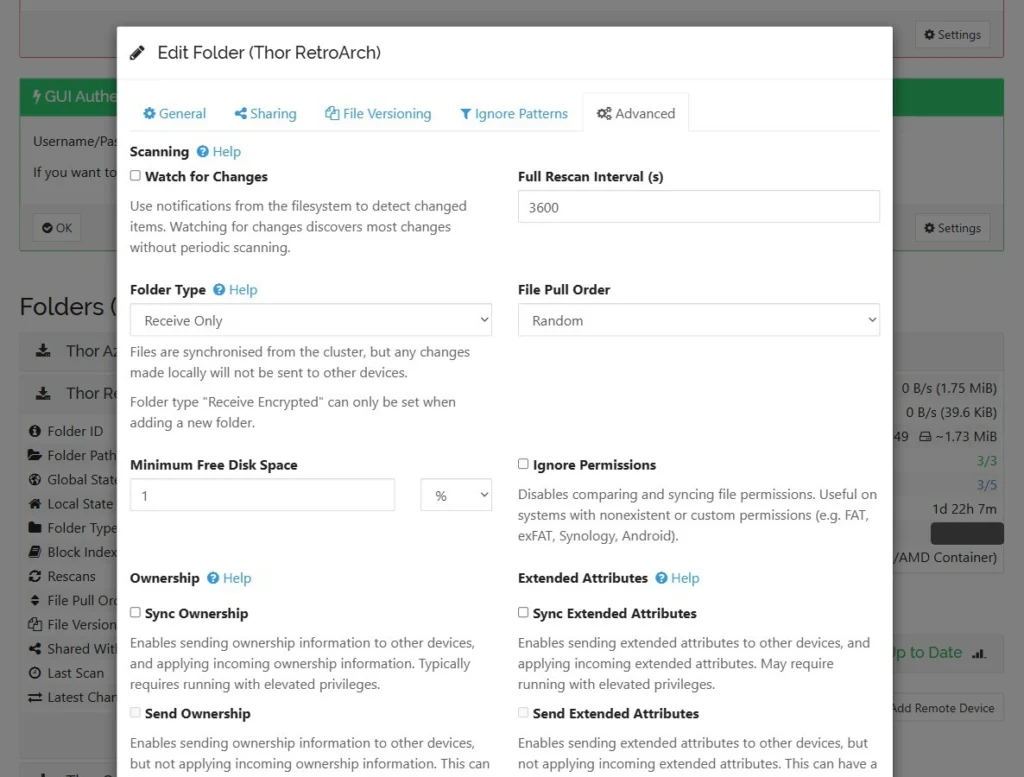
/var/syncthing, which is the local disk. Replace it with/backups/RetroArch(or/backups/Azaharand/backups/Saves). That’s the path inside the container. On the NAS it ends up in your backup folder. - Advanced → Folder Type: Receive Only
- File Versioning: see step 4, ideally right in the same dialog
You don’t need ignore rules on the server. Whatever the handheld ignores, it never sends in the first place.
Step 4: Turn on versioning
Without versioning this is just a copy. If the save on the handheld breaks, it’s broken on the NAS seconds later too. With versioning, the good copy from before is still waiting in .stversions.
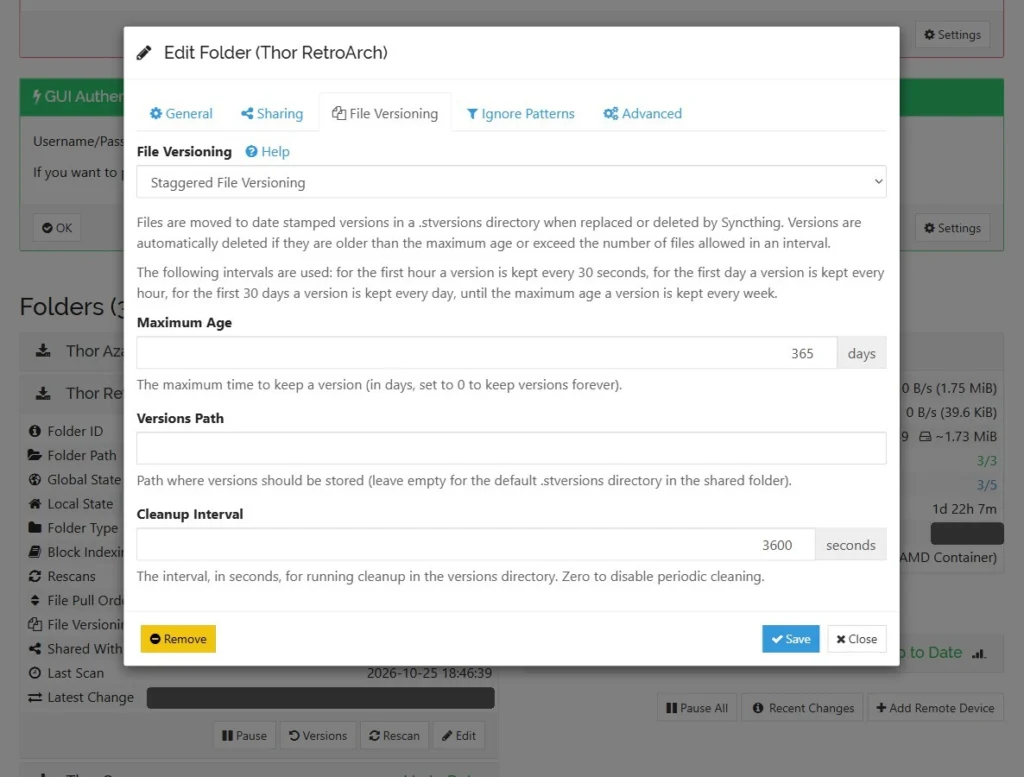
On the server, open each of the three folders (Edit), go to the File Versioning tab and choose Staggered File Versioning. Set Maximum Age to 365 days. According to the docs, Syncthing then keeps:
- one version every 30 seconds for the first hour,
- one version per hour for the first day,
- one version per day for the first 30 days,
- one version per week after that, up to the maximum age.
Syncthing deletes older versions on its own. That suits saves well: you can go back to this afternoon, last week or three months ago. It barely costs any space, since save files are usually just a few KB. In the config file the setting is called maxAge and is stored in seconds (31536000 = 365 days). In the web UI you enter days.
The old versions live in .stversions inside each backup folder, with a timestamp in the name, for example Pokemon Lazarus~20261023-153012.srm. Syncthing only versions files it replaces or deletes because of a change from another device. On the server every change comes from the handheld, so this covers every save.
Step 5: Emulators that save into Android/data
Many emulators keep their saves in their private app folder under Android/data/<package name>. Since Android 11, no other app is allowed in there, not even with all files access. So Syncthing never sees those saves.
The rule for every emulator: look in its settings for the save location (often “Save directory”, “Save path” or “Memory cards”) and point it to a subfolder of /sdcard/Saves. Copy existing saves over with a file manager first, while the emulator is closed.
Example: DS with WatermelonDS (formerly MelonDualDS)
WatermelonDS is an Android port of the DS emulator melonDS, built for dual-screen handhelds like the Thor. Up to version 0.7.0 (August 2026) it was called MelonDualDS, and you can get it from the GitHub releases. On an older version the app still shows up as MelonDualDS. The menu entries are the same:
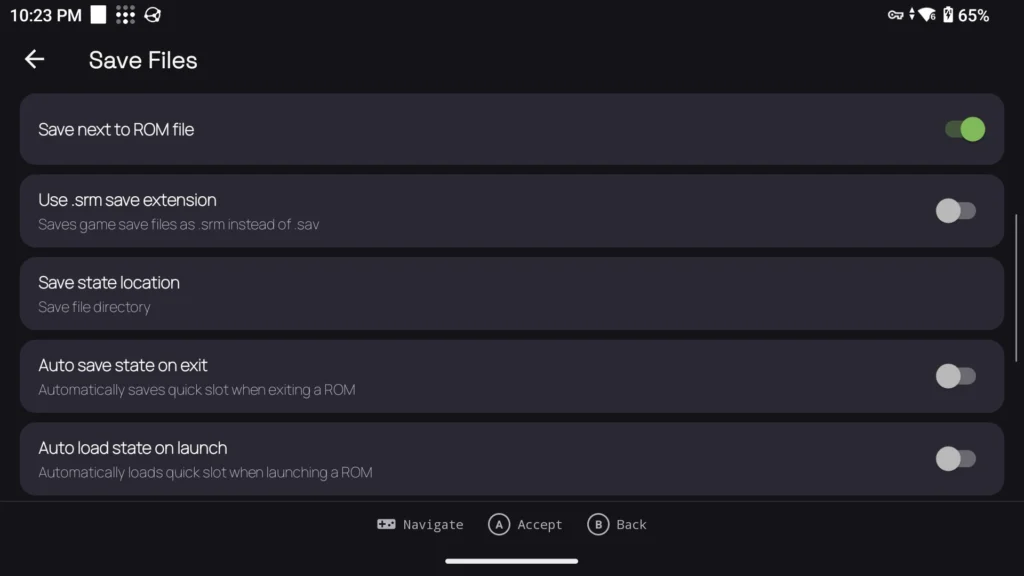
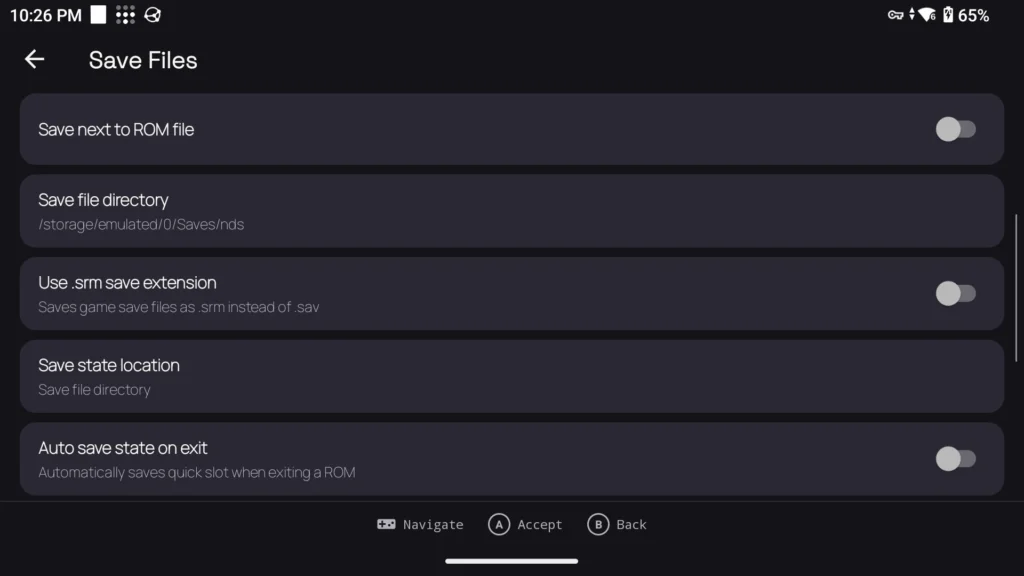
- Settings → Save Files
- turn Save next to ROM file off
- set Save file directory to
/sdcard/Saves/nds - copy your existing
.savfiles into that folder
On mine, Pokémon SoulSilver showed “Continue” with my old save right after. Funny detail: “Save next to ROM” was actually on, and the saves still landed in Android/data. The emulator wasn’t allowed to write to the ROM folder when it was launched from the frontend (the launcher for your games, Cocoon on mine). So check with a file manager where the file actually ends up, whatever the setting says.
The exception: DuckStation (PS1)
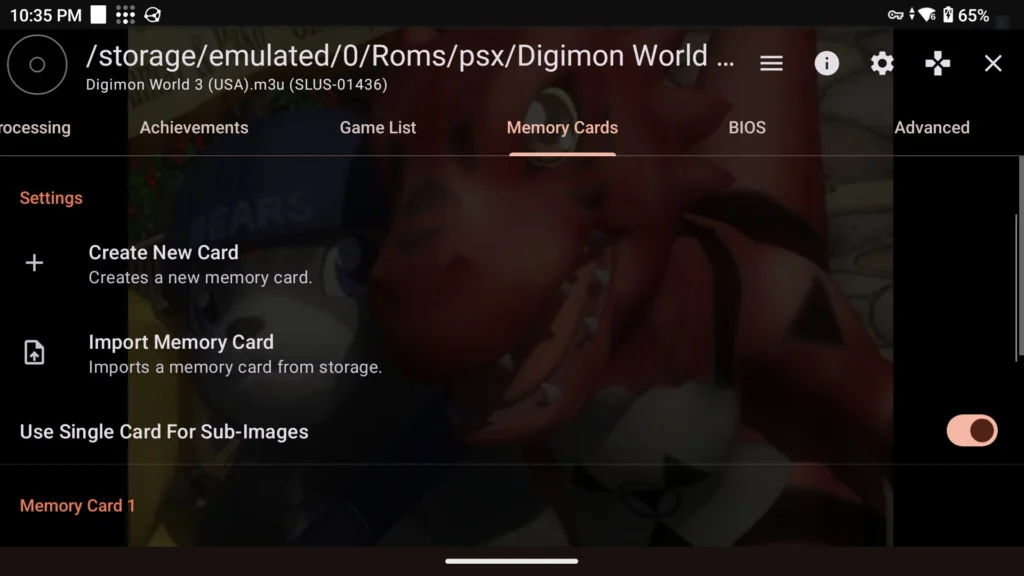
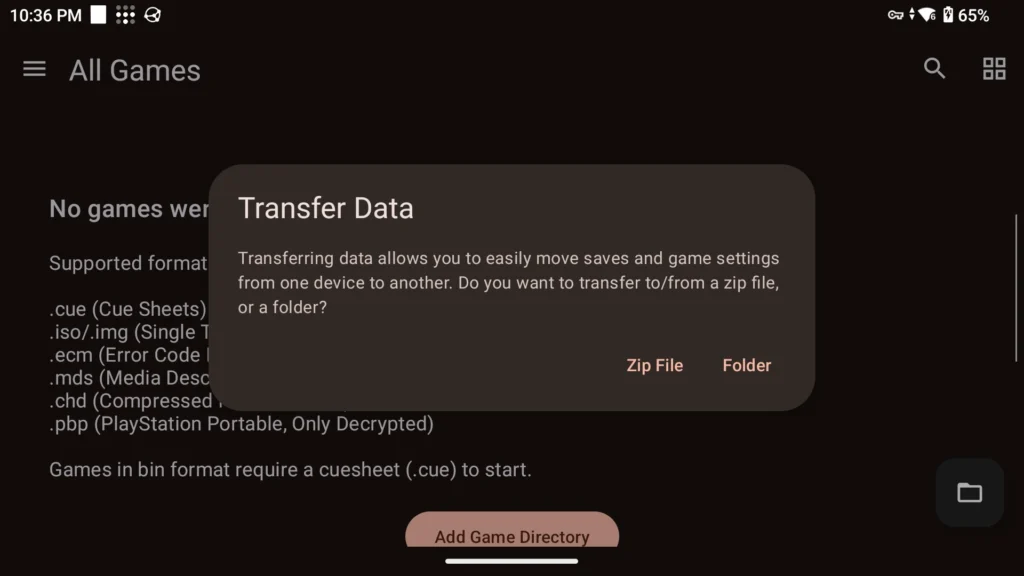
DuckStation stores its memory cards under Android/data, and I couldn’t find any option in the Android version to put them somewhere else, even after going through every settings tab. The files are even locked down so tightly that ADB can’t copy them. So PS1 saves can’t be backed up automatically with this setup.
I’m staying on DuckStation anyway. For me it’s more accurate than RetroArch, runs great and is easier to use. I’m choosing not to trade that for an automatic backup. If you feel the same: DuckStation’s side menu has a “Transfer Data” entry that should let you export saves and settings by hand as a ZIP. I haven’t run that export end to end myself yet. So check that you really end up with a ZIP that contains your memory cards, and read every dialog carefully, because the same entry can also import and overwrite.
How to check that it works
- The server’s web UI shows Up to Date for all three folders, and the handheld shows as connected under Devices.
- Compare count and size: under Local State the server shows files and size. The Azahar folder should be small, a few hundred KB rather than gigabytes. If it’s huge, your ignore rules aren’t working.
- Compare checksums (md5, a kind of fingerprint of the file) on both sides with the commands below. By default RetroArch sorts saves into one subfolder per core (the emulator module, for example mGBA). If you turned that off, drop the
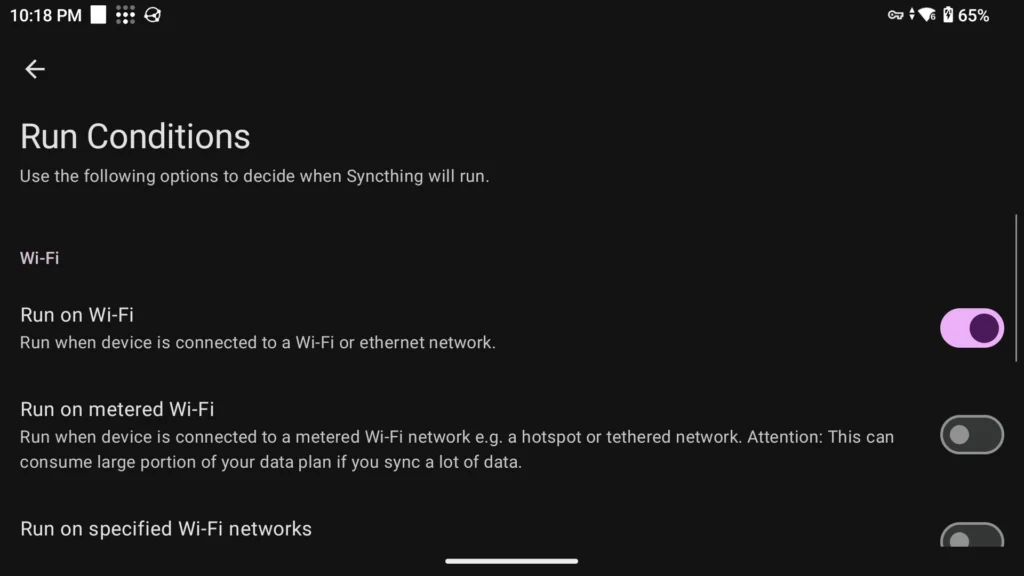
*/from the first command. On mine, all 19 save files were byte-identical after the first sync. - Test a change: play for a bit, save in the game and close the emulator. Shortly after, the file on the NAS should show a new modified date. How fast depends on your run conditions in Syncthing-Fork, the rules for when the app is allowed to sync.
- Look in
.stversions: after the change, the previous copy sits there with a timestamp in its name. The folder starts with a dot, so it’s hidden, but the third command below lists it anyway.
# On your PC, checksums on the handheld
adb shell "md5sum /sdcard/RetroArch/saves/*/*.srm"

# On the server, checksums in the backup
find /mnt/nas/Backups/handheld-saves/RetroArch/saves -type f -name '*.srm' -exec md5sum {} +

# On the server, list old versions
find /mnt/nas/Backups/handheld-saves/RetroArch/.stversions -type f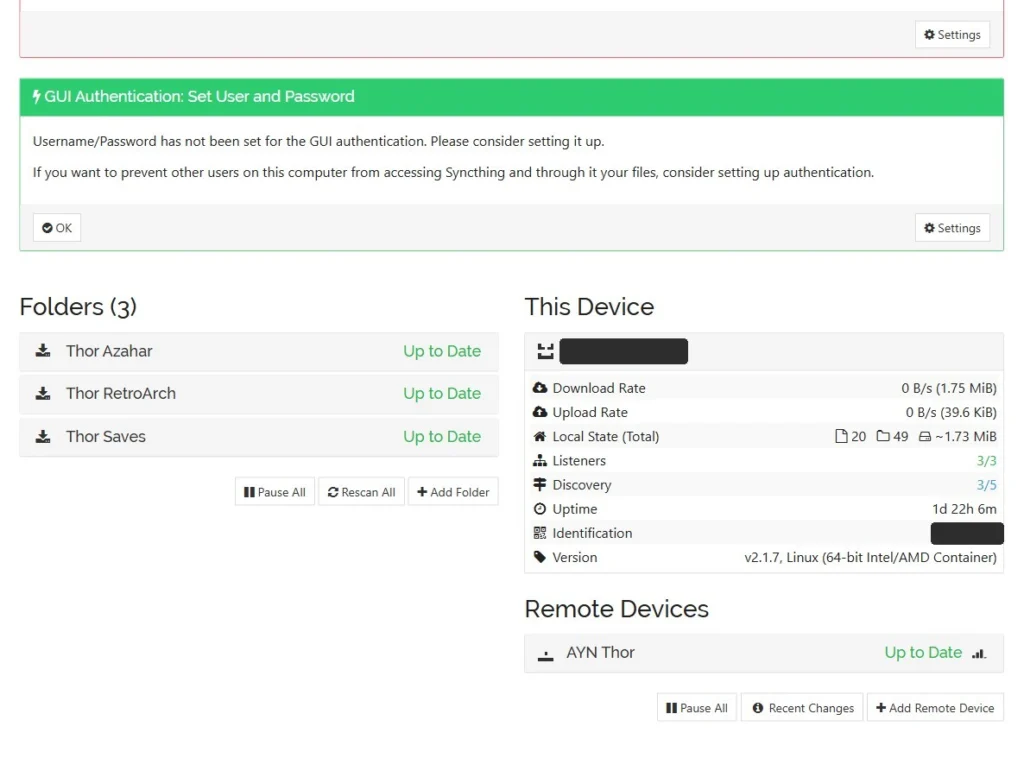
How to restore a save
Here’s how to bring back an old save when one breaks:
- Close the emulator completely. By default RetroArch autosaves the
.srmevery 10 seconds. If the game is still running, it overwrites your restored save right away. - Find the right version in
.stversionsand copy it to your PC, for example through your NAS share in File Explorer or withscp. On a network share, Windows often only shows folders that start with a dot once you turn on “Hidden items”. Don’t edit anything inside the backup folder itself, it’s a Receive Only folder. - Remove the timestamp from the name:
Pokemon Lazarus~20261023-153012.srmbecomesPokemon Lazarus.srmagain. - Rename the broken save on the handheld instead of deleting it, for example to
Pokemon Lazarus.srm.corrupted-2026-10-23. That way you still have it if the restore goes wrong. - Copy the old version to the original location over USB file transfer, with a file manager or with
adb push, for exampleadb push "Pokemon Lazarus.srm" /sdcard/RetroArch/saves/mGBA/. Then check size and md5. - Only now start the emulator and load the game.
The handheld then sends the restored save to the NAS again. That’s intended: the server moves the previous copy into .stversions in the process, so nothing gets lost.
Common mistakes
- Swapping saves while the game runs: RetroArch rewrites the
.srmevery 10 seconds. Always close it first. - Saves in Android/data: Syncthing can’t see them, no matter which permissions you grant. Use a file manager to check where each emulator really saves.
- Ignore rules in the wrong order:
*goes at the bottom. If it’s on top, nothing gets backed up. - Folder started without ignore rules: then the handheld sends everything first, for Azahar including the installed games. Use option A or B from step 3.
- No write access to the backup folder: the folder on the server stays empty and shows an error. Check PUID/PGID and run the write test from step 1.
- Send Only means one-way: nothing from the server ever overwrites a save on the handheld. But a broken or deleted save still ends up on the NAS. That’s exactly what versioning is for, so don’t turn it off.
- Editing files in the backup folder: a Receive Only folder flags that as a local change. The Revert Local Changes button deletes added files again. Always work with copies outside the folder.
- 0-byte files: an interrupted
adb pullleaves an empty file on your PC that looks like a backup. Check size or checksum on every copy. - Database on the network share: the config folder
/var/syncthingbelongs on the server’s local disk. Only the backup target goes on the NAS.
Important: your own dumps only
This guide backs up your saves, not games. Only use emulators with games and BIOS files you dumped yourself from your own cartridges, discs or consoles. Don’t download ROMs, BIOS files or keys.
FAQ
Does the backup work when I’m away from home?
Yes, as long as your run conditions let Syncthing-Fork run. By default Syncthing also finds your server over the internet: the global discovery servers tell the handheld which address the server is reachable at right now. If a direct connection fails, relays step in, which are public servers that pass the traffic along. The data stays end-to-end encrypted, so a relay only sees encrypted traffic. If you use Tailscale (a private VPN between your devices), you can also add the server’s Tailscale address in Syncthing-Fork.
Can I use this to share saves between two handhelds?
Not with this setup, and that’s on purpose. Two devices in Send & Receive mode would overwrite each other’s saves, and with a 10-second autosave, conflicts are guaranteed. This setup is a backup and nothing more.
Does Syncthing drain the battery?
Syncthing-Fork has its own run conditions. With them it can sync only while charging, only on Wi-Fi or only once an hour. For a save backup that’s plenty, since the files are tiny.
Wrap-up
Once it’s set up, the backup runs on its own, and a year of versions catches broken saves. Just check once for every new emulator that it really saves to /sdcard/Saves and not to Android/data.
* Affiliate link: As an Amazon Associate I earn from qualifying purchases. It costs you nothing extra. More info
Did this guide help you? You can buy me a coffee on Ko-fi. It keeps MappleBox ad-free.