Regenerate a Minecraft World Weekly: Fresh Adventure World
After a few months, the main world is picked clean. A world that’s freshly generated every Monday has unexplored terrain again and structures nobody has looted yet. Your players get a reason to head out every week. In this guide I’ll show you how to have a Minecraft world regenerate automatically. That includes picking the seed (the starting number Minecraft calculates the terrain from), pregen (generating the landscape in advance) and swapping worlds without an admin at the keyboard. Everything you need is in an open source repo on GitHub: mapplebox/minecraft-weekly-world. The real-world example is the adventure world on CobbleBox, my Cobblemon server (Minecraft 1.21.1, Fabric, COBBLEVERSE modpack). The repo is the cleaned-up, configurable version of that setup.
Quick summary
- Your server gets an extra world that replaces itself with a new landscape every Monday.
- Useful if you run a Fabric server on Minecraft 1.21.1 and the main world is picked clean.
- You need access to your server’s Linux machine, the mods Fabric API, MultiWorld and Chunky, RCON turned on and Python 3. You only need Java or Docker if you build the mod yourself.
- The mod, Python tool and systemd timers come from the repo minecraft-weekly-world. Mostly you just adjust one config file. According to the README, the generalized repo version hasn’t run on a live server yet, so test it on a copy of your server first.
- Once it’s set up, the swap runs automatically. Adding new regions on CobbleBox took one evening.
The concept
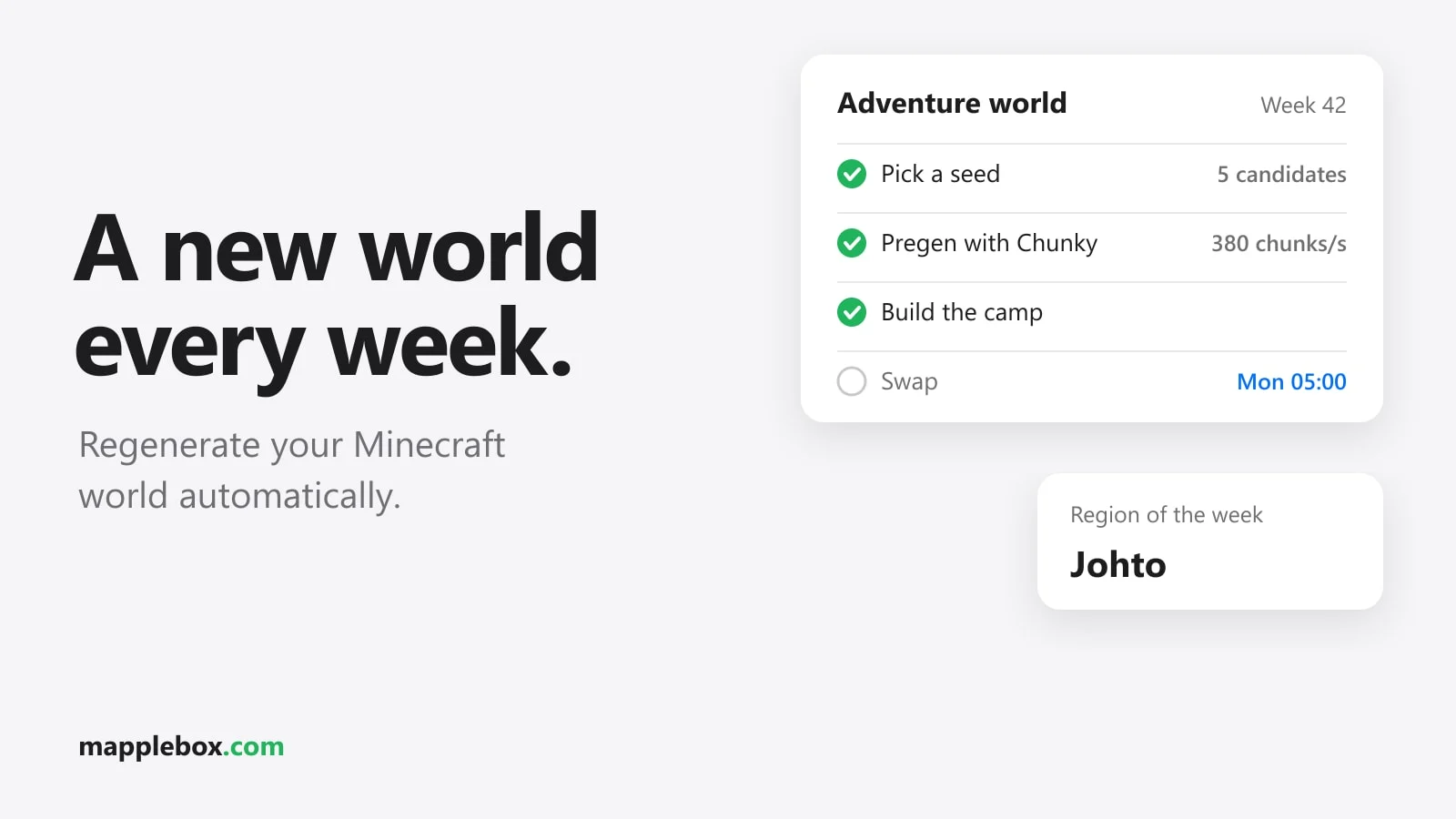
The adventure world is an extra world next to the main world. Every week it gets a new random seed and with it completely new terrain. On top of that a theme rotates, which the repo calls a region. On CobbleBox the regions Kanto, Johto, Hoenn and Sinnoh take turns, and the example config in the repo uses forest and frontier. The count starts from a fixed calendar week so the rotation keeps going cleanly across New Year’s. Each region has its own biome copies and can get its own, more densely placed structures. On CobbleBox those are the gyms of each region.
For players the rule is simple. Anything you build in the adventure world is gone at the next swap. Whatever you carry back to the main world in your inventory, you keep. The world is there for exploring and farming.
Technically the setup has four building blocks, all in the repo:
- a datapack (config files that extend Minecraft without a mod) that defines one dimension (a separate world like the Nether or the End) per region as a generator.
tools/weekly_world.py build-datapackbuilds it for you. - a small Fabric mod (an extension with its own code) in the
mod/folder that makes these generators usable in MultiWorld and adds console commands for creating and deleting the weekly worlds - the Python tool
tools/weekly_world.pywith the stepsprepareandswap - two systemd timers in the
systemd/folder that start the tool at the right time
To be honest about where things stand: the original runs on CobbleBox. The mod in the repo builds cleanly, but the generalized version hasn’t run on a live server yet. The README lists exactly what’s tested under “Not verified”. So test the setup on a copy of your server first.
What you need
- a Minecraft 1.21.1 server with Fabric Loader 0.16.0 or newer. You’ll find the installer at fabricmc.net/use/server.
- the mods Fabric API, MultiWorld and Chunky, each in the Fabric version for 1.21.1, in the
mods/folder - RCON, the remote control for the server console, turned on in
server.properties - Python 3.9 or newer on the machine that can reach RCON and read the server files. The tool only needs the standard library, so you don’t install any packages.
- a Linux user with systemd for the timers
- Java 21 or Docker, only if you build the mod yourself or need to generate the biome list once for vanilla terrain (see step 4)
If you also run C2ME, leave the mod’s lock mixin turned on. The guide on the C2ME watchdog crash explains why.
In the examples, the server lives in /srv/minecraft with the world folder world, and the repo lives in ~/minecraft-weekly-world. That’s also what the example config and the systemd units expect. If anything is somewhere else on your machine, adjust the paths.
Step 1: Turn on RCON
The tool sends all commands to the server over RCON. Open server.properties in the server folder and set these three values. Make up your own password. 25575 is the default port:
enable-rcon=true
rcon.port=25575
rcon.password=<your-rcon-password>
After a restart, the server log shows a line like RCON running on 0.0.0.0:25575. Don’t open the RCON port to the outside in your router or firewall. The tool runs on the same machine or in the same network and only needs the port locally.
Step 2: Get the repo and install the mod
Clone the repo into your home directory:
cd ~
git clone https://github.com/mapplebox/minecraft-weekly-world.git
cd minecraft-weekly-world
A datapack dimension has one catch: it shares its seed with the main world. For new terrain every week you need real extra worlds with their own seed. MultiWorld provides those. Its -g option only knows the built-in generators (NORMAL, NETHER, END, FLAT, VOID) and ones another mod registers in Java, though. That’s exactly what the mod from the repo does. As soon as a dimension <namespace>:weekly_* loads, it grabs that dimension’s chunk generator and registers it with MultiWorld. The call uses reflection (the mod looks up the right function only at runtime), so it doesn’t depend on MultiWorld at compile time.
If the repo has a finished jar under Releases, use that. Otherwise build the mod yourself. With Docker you need neither Java nor Gradle locally. The command builds in the official Gradle image with JDK 21, keeps the Gradle cache in the project folder and uses -u so the generated files belong to your user:
cd ~/minecraft-weekly-world/mod
docker run --rm \
  -u $(id -u):$(id -g) \
  -e GRADLE_USER_HOME=/work/.gradle \
  -v "$PWD":/work -w /work \
  gradle:8.12-jdk21 \
  gradle build --no-daemon
# finished jar: build/libs/weeklyworld-1.0.0.jar
With a local JDK 21, ./gradlew build in the mod/ folder is enough, since the Gradle wrapper is in the repo. If the build fails, open an issue in the repo.
Copy the jar into the server’s mods/ folder and start the server once:
cp build/libs/weeklyworld-1.0.0.jar /srv/minecraft/mods/On first start, the mod writes its config to config/weeklyworld.json:
{
  "generators": [],
  "autoDiscover": true,
  "generatorPrefix": "weekly_",
  "worldPrefix": "weekly_",
  "multiworldNamespace": "multiworld",
  "lookupCacheLock": true
}autoDiscoverregisters every loaded dimension<namespace>:weekly_*as a generator.minecraft:and MultiWorld’s own namespace are excluded, so the weekly worlds themselves don’t show up twice. If your dimensions are named differently, add their IDs undergenerators.worldPrefixmakes sure the commands only create and delete worlds whose ID starts withweekly_. That way a typo in the script never deletes another MultiWorld world.lookupCacheLockis the C2ME fix. Without C2ME you can set it tofalse. Changes only take effect after a restart.
The mod also adds three console commands. MultiWorld’s own /mw create wants a player as the sender, but the reset runs at night when nobody’s online. So these commands require permission level 4 (the highest admin level) and are meant for the console and RCON:
/weeklyworld create <id> <generator> <seed>   e.g. /weeklyworld create weekly_test weeklyworld:weekly_forest 12345
/weeklyworld delete <id>
/weeklyworld generators
The created world is then called multiworld:<id>, for example multiworld:weekly_test. To delete it, the mod opens the world through Fantasy (the library MultiWorld is built on) and deletes its handle, because MultiWorld’s own delete only works on loaded worlds. Datapack dimensions load before MultiWorld reopens its saved worlds. That’s why the weekly worlds still find their generator after a restart.
Step 3: Configure the tool
Create your own config from the example config and store the RCON password in a file only you can read:
cd ~/minecraft-weekly-world/tools
cp config.example.json config.json
echo '<your-rcon-password>' > .rcon_password && chmod 600 .rcon_password
# alternative: export WEEKLY_WORLD_RCON_PASSWORD=...
These are the most important keys in config.json:
server_rootandlevel_name: the server folder and the name of the world folder. The tool counts active players from the files in<level_name>/stats/*.json.rcon: host, port and eitherpassword_env(name of the environment variable) orpassword_file(relative to the config).timezone: the time zone the tool uses to work out the calendar week, for exampleEurope/Berlin.datapack: namespace (defaultweeklyworld), output file andsources, meaning where the tool reads biomes, tags and structures from. The first match wins: world datapacks, global datapacks, mod jars, vanilla jar. The vanilla data is inversions/1.21.1/server-1.21.1.jaror in the bundlerserver.jar. If your vanilla jar is somewhere else, adjust the path.regions: one entry per region withbiome_namespaces,exclude_biomes,exclude_structures,required_structuresandextra_structures. More on that in step 4.rotationandrotation_start: the order of the regions and the ISO calendar week of the first region, for example2026-W41.tries: the number of seeds per prepare. Leave it at 5. The problems section below explains why.radius,camp,spawn,announceandafter_swap_commands: play area, arrival point, return point for players still in the old world, chat announcement and your own commands after the swap.
Step 4: Define regions and build the datapack
Each region becomes a datapack dimension, for example weeklyworld:weekly_forest. It uses the Overworld generator but replaces every biome with a copy in its own namespace, meaning under its own name prefix. The copy of minecraft:plains in the region forest is then called weeklyworld:forest/minecraft/plains. On CobbleBox with Terralith that’s 148 Overworld biomes per region. In the datapack, each copy ends up under this path:
data/<namespace>/worldgen/biome/<region>/<original-namespace>/<path>.json

# example:
data/weeklyworld/worldgen/biome/forest/minecraft/plains.json
data/weeklyworld/dimension/weekly_forest.json
Each copy also has to go into every biome tag the original is in. A biome tag is a named list of biomes. Mob spawns, with COBBLEVERSE also the Cobblemon spawns, and many structures like villages or ruins check biome tags. If the copies are missing there, your new world stays empty. The tool searches all sources from datapack.sources, resolves tags within tags and adds each copy to its original’s tags with "replace": false.
The copies also let you control which structures show up where. Structures that name biomes directly don’t end up in the copies. That’s how CobbleBox keeps the regular COBBLEVERSE gyms out of the adventure world. Instead, each region gets its own copies of the matching structures with tighter spacing (spacing 20, separation 8 chunks, a chunk being a 16 × 16 block piece of the map). That was necessary because with their 40-chunk spacing, the originals were all within 1,000 blocks in 0 out of 20 seeds in a test. In the config, a denser copy looks like this:
"forest": {
  "biome_namespaces": ["minecraft"],
  "exclude_biomes": ["minecraft:desert", "minecraft:badlands"],
  "required_structures": ["minecraft:pillager_outpost"],
  "extra_structures": {
    "forest_village": {
      "like": "minecraft:village_taiga",
      "biomes": ["minecraft:forest", "minecraft:birch_forest", "minecraft:taiga"],
      "spacing": 20,
      "separation": 8
    }
  }
}biome_namespacessets which biomes get copied.["*"]means all,["minecraft"]only the vanilla biomes.exclude_biomesremoves biomes from the region entirely.required_structuresare the must-have structures the tool uses to pick the seed. Theextra_structurescount toward them automatically.extra_structuresare denser copies of existing structures that only spawn in this region. The biomes you list must be copied in the region.exclude_structurespins a structure that defines its biomes through a tag to its original biomes. Otherwise it would still reach the copies through the tag. This changes the structure file for all dimensions.
With a terrain mod like Terralith, the biome list sits right in its overworld.json, and you don’t need to do anything else. With vanilla terrain, the server jar has no separate overworld.json. The Overworld generator is in worldgen/world_preset/normal.json and only points to the built-in biome preset, while the actual list lives in the code. The tool reads the preset by itself. You generate the biome list once with the data generator of the vanilla server jar (this needs Java 21). Run the command in the server folder and enter the absolute path of the file in the config under datapack.overworld_biome_parameters, because the tool looks for relative paths in the tools/ folder:
java -DbundlerMainClass=net.minecraft.data.Main -jar server.jar --reports
# result: /srv/minecraft/generated/reports/biome_parameters/minecraft/overworld.json
If you can’t find the vanilla jar for datapack.sources, find /srv/minecraft -name '*.jar' -path '*server*' helps. The bundler file server.jar works too, and the tool opens it by itself.
Then build the datapack. The first run with --dry-run only shows what would be created:
cd ~/minecraft-weekly-world/tools
python3 weekly_world.py build-datapack --dry-run
python3 weekly_world.py build-datapack
# writes world/datapacks/weekly_world.zip
Everything goes into a single zip file under world/datapacks/, so you upload one file instead of wrestling with hundreds of individual files. The pack.mcmeta inside has "pack_format": 48, which is the datapack format for Minecraft 1.21.1. Before writing, the tool checks the generated files, for example whether every structure has the spawn_overrides field.
Then restart the server. Minecraft only reads worldgen (dimensions, biomes and structures) at startup, so a /reload isn’t enough. The log has to show one line per region like MultiWorld generator registered: weeklyworld:weekly_forest.
For the arrival point, the repo includes a simple example camp made of vanilla blocks. Copy examples/camp-datapack/ to world/datapacks/ and leave camp.function set to weeklyworld:camp_build. If you don’t want a camp, set camp.function to null.
Step 5: Prepare, or finding the best seed
If the region’s required structures are 6,000 blocks away, the week is a bust, even if the seed looks good otherwise. So prepare creates several worlds with random seeds, at most tries of them with IDs like weekly_2026w42_1, and measures each one with /locate structure. That command finds structures without loading chunks, which makes it fast. The winner is the seed whose farthest required structure is closest to 0/0. All other worlds are deleted right away. If a seed already fits within the area the player count calls for, the tool stops early. It sends these commands over RCON:
weeklyworld create weekly_2026w42_1 weeklyworld:weekly_forest <seed>
execute in multiworld:weekly_2026w42_1 positioned 0 80 0 run locate structure minecraft:pillager_outpost
weeklyworld delete weekly_2026w42_1
The size of the play area depends on the player count: about 500 × 500 blocks per active player in the last 7 days, in steps of 250, with a radius of at least 1,000 and at most 4,000 blocks. On CobbleBox the upper limit comes from the world border at ±5,000, which applies to all dimensions. If the radius isn’t enough for all required structures, it gets bigger. An extra 64-block margin is added so the buildings themselves get generated too. If nothing fits under 4,000 even then, the old world stays open for another week. All of these values are in the config under radius.
Next, the tool pregenerates the area with Chunky (a mod that generates chunks in advance). Give Chunky the full world ID with the multiworld: namespace:
chunky world multiworld:weekly_2026w42_1
chunky center 0 0
chunky shape square
chunky radius 1500
chunky start
chunky progress
With chunky progress, the tool waits until no task is running anymore. On CobbleBox, Chunky manages about 380 chunks per second. Finally, the tool builds the camp as the arrival point. It looks for the spot near 0/0 that’s at least 128 blocks (camp.clearance) away from every required structure and runs the camp function there. The first attempt on CobbleBox without this distance cut the camp right into a gym 30 blocks away. The CobbleBox camp is bigger than the example in the repo: a platform, campfire, two healing machines, benches, lanterns and an NPC (a character controlled by the server).
📸 [Screenshot: camp in the adventure world with campfire, healing machines and NPC, Lion adds this]
Before you rely on the timer, try the steps by hand. status shows you the state, the player count, the radius and the region for the coming week. --dry-run only prints the RCON commands without sending them:
python3 weekly_world.py status
python3 weekly_world.py prepare --dry-run
python3 weekly_world.py prepare            # optional: --region forest --radius 1500
A second run in the same week does nothing. The state lives in weekly_world_state.json with the fields current, next and history. A lock file with the process ID keeps two prepares from running at the same time.
Step 6: Swap the worlds
The swap is short. First, swap moves every player still in the old world to the return point from spawn in the config. at @s comes first because if dimension checks the dimension of the current position. in <dimension> sets which dimension tp teleports into:
execute as @a at @s if dimension multiworld:weekly_2026w41_2 in minecraft:overworld run tp @s 0.5 80 0.5
weeklyworld delete weekly_2026w41_2
Then the tool deletes the old world, runs your after_swap_commands and announces the new week in chat with tellraw. In both you can use the placeholders {world}, {region}, {x}, {y}, {z}, {week}, {seed} and {radius}. If a prepare is still running, swap waits up to swap_wait_for_prepare_s seconds. If nothing was prepared, the current world stays. To start the swap by hand, run:
python3 weekly_world.py swap --dry-run
python3 weekly_world.py swap
Step 7: The schedule with systemd
The units in the systemd/ folder start prepare on Sundays at 23:00 and swap on Mondays at 05:00. A systemd timer is a kind of alarm clock on Linux that starts a service on a schedule. The units run as user units, so you don’t need root to operate them. Only the last command, loginctl enable-linger, needs sudo rights once. If you don’t have them, ask your server admin to run it for your user:
mkdir -p ~/.config/systemd/user
cp ~/minecraft-weekly-world/systemd/*.service ~/minecraft-weekly-world/systemd/*.timer ~/.config/systemd/user/
# adjust the paths in the .service files if the repo isn't in ~/minecraft-weekly-world
systemctl --user daemon-reload
systemctl --user enable --now weekly-world-prepare.timer weekly-world-swap.timer
sudo loginctl enable-linger "$USER"
Without enable-linger, your user’s systemd instance, and with it the timers, only runs while you’re logged in. With linger it starts at boot and keeps running after you log out. Persistent=true in the timers catches up on missed runs after downtime. Instead of .rcon_password, you can also store the RCON password as WEEKLY_WORLD_RCON_PASSWORD=... in ~/.config/weekly-world.env (with chmod 600). The units read that file.
Schedule a server restart before the swap. On CobbleBox one runs every night. MultiWorld reloads saved worlds at startup, and the restart frees the leaked threads (see below). By the way, on CobbleBox the process doesn’t use the repo units. It hangs off an existing systemd timer that syncs server data every hour and checks the time on every run. There, all players in the adventure world also get a warning on Sundays at 18:00. On Sunday, the tool already calculates the calendar week for the new world as the following Monday’s.
Step 8: The entrance for your players
The tool deliberately leaves it to you how players get into the world. On CobbleBox, players enter through an NPC at spawn, the expedition leader. It opens a GUI window (a menu with buttons) that’s also available with /abenteuer (“adventure”). “Travel” takes you to the current week’s camp. That only works if you’re standing within 8 blocks of the NPC and the world is unlocked. “Back to spawn” takes you to the main world. The NPC in the camp opens the same window, so you get back the same way.
📸 [Screenshot: expedition leader at spawn with the travel window open, Lion adds this]
For your own entrance, the example config saves the world and arrival point in the command storage weeklyworld:current after every swap. A macro function in your datapack can use it to bring players there, for example data/<your-namespace>/function/travel.mcfunction:
# call: function <your-namespace>:travel with storage weeklyworld:current
$execute in $(world) run tp @s $(x) $(y) $(z)
Hook the function up to an NPC, a sign or a command of your choice. Build the way back the same way with execute in minecraft:overworld run tp @s ....
Check that it works
- After startup, the server log shows
RCON running on ..., oneMultiWorld generator registered: weeklyworld:weekly_<region>per region and, with the lock turned on,Lookup cache lock: active. - In the server console,
weeklyworld generatorslists all generators. - A manual test run:
weeklyworld create weekly_test weeklyworld:weekly_forest 12345in the console, then in the game as an OP/execute in multiworld:weekly_test run tp @s 0 120 0. You should land in the region’s landscape. Then leave again and runweeklyworld delete weekly_test. python3 weekly_world.py statusshows the player count, radius and the region for the coming week. After a prepare, the new world appears undernext, and after a swap undercurrent.systemctl --user list-timersshows both timers with their next run, andloginctl show-user "$USER" --property=Lingershould printLinger=yes.- Read the output of the runs with
journalctl --user -u weekly-world-prepare.serviceandjournalctl --user -u weekly-world-swap.service.
What went wrong
MultiWorld leaks threads on every create and delete
The first version tested 40 seeds. Every sample is a real MultiWorld world. Every create and delete leaves threads behind (parallel lines of work inside a program) that only a restart frees. After 40 attempts the server hit “unable to create native thread”. So CobbleBox now only runs 5 attempts per week. That’s enough, because with the denser gym copies the first seeds already fit. That’s why tries is set to 5 in the repo, and the tool warns above 10. Keep the number of attempts small, place your required structures densely enough and schedule the swap after a restart.
systemd kills background jobs of a oneshot service
On October 12 the swap didn’t happen, and a player reported it. Put simply, Linux cleaned up the prepare job every time before it finished. The timer starts a service of type oneshot (it runs once and exits). That service had started prepare as a “detached” process in the background. As soon as the oneshot is done, systemd cleans up its entire cgroup, including all child processes. A cgroup is the group of all processes belonging to a service. On CobbleBox, the hourly sync timer from step 7 kicks off prepare and tries again on every run until it has finished. So prepare died every hour after a few seconds, leaving behind an empty log and an orphaned lock file. Two other background jobs had the same bug.
The repo solves this in two ways. The included weekly-world-prepare.service runs prepare directly as a oneshot and waits until it’s done with TimeoutStartSec=4h. If you start prepare from your own script, use prepare --background. That starts the job with systemd-run --user as its own transient unit, which keeps running in its own cgroup. Simplified, the tool does this:
import subprocess

def spawn_background(unit, cmd, log):
    """Starts a job that outlives the oneshot service."""
    subprocess.run([
        "systemd-run", "--user", "--collect",
        "--unit", unit,
        "-p", f"StandardOutput=append:{log}",
        "-p", f"StandardError=append:{log}",
        *cmd,
    ], check=True)

spawn_background("weekly-world-prepare-1",
                 ["python3", "weekly_world.py", "--config", "config.json", "prepare"],
                 "weekly_world_state_prepare.log")
The lock file now also holds the process ID. If the process is gone, the next run takes over the lock, and an orphaned lock file no longer blocks anything.
Worldgen only loads at server start
Biomes, dimensions, structures and structure sets are worldgen registries (the building blocks of world generation). Minecraft only reads them at startup, and a /reload doesn’t help. So new regions get into the game like this: add the region to config.json under regions, add it to rotation, run build-datapack again and wait for the next restart. On CobbleBox, Johto, Hoenn and Sinnoh were added in one evening and were available after the next restart.
Validate the datapack JSON before restarting
Because worldgen errors only show up at startup, a broken datapack blocks the entire server. That’s what happened with the custom structures. They were missing the spawn_overrides field, which Minecraft requires on every structure, even if it’s empty. So the server didn’t start. Since then the script always sets it with st.setdefault("spawn_overrides", {}), and the JSON gets validated before every restart. The tool in the repo checks its output while building. Still, test a new datapack on a copy of your server first, and look for the MultiWorld generator registered lines after startup.
Try it yourself
Shortly after the adventure world first launched, there were also watchdog crashes caused by C2ME. The watchdog stops the server when it hangs for too long. The guide on the C2ME watchdog crash shows how to find a crash like that in the stack trace (the error listing that shows where things blew up) and fix it with a small mixin. A mixin is a small patch that changes another mod’s code at startup. The mod from the repo already includes this fix.
You’ll find the code, example config and systemd units in the repo mapplebox/minecraft-weekly-world on GitHub. If you want to see the adventure world in action, drop by CobbleBox (the community speaks German, but everyone is welcome). The server address is 2mc.mapplebox.de, and the expedition leader stands at spawn. If you don’t have a server yet, start with my guide How to set up a Cobblemon server, where I show you hosting with the Pelican Panel (a web interface for game servers). The rotation on CobbleBox has been running since calendar week 41, with Kanto as the first region.
Did this guide help you? You can buy me a coffee on Ko-fi. It keeps MappleBox ad-free.