Discord Ticket Bot in Python: Build Your Own Support Tickets
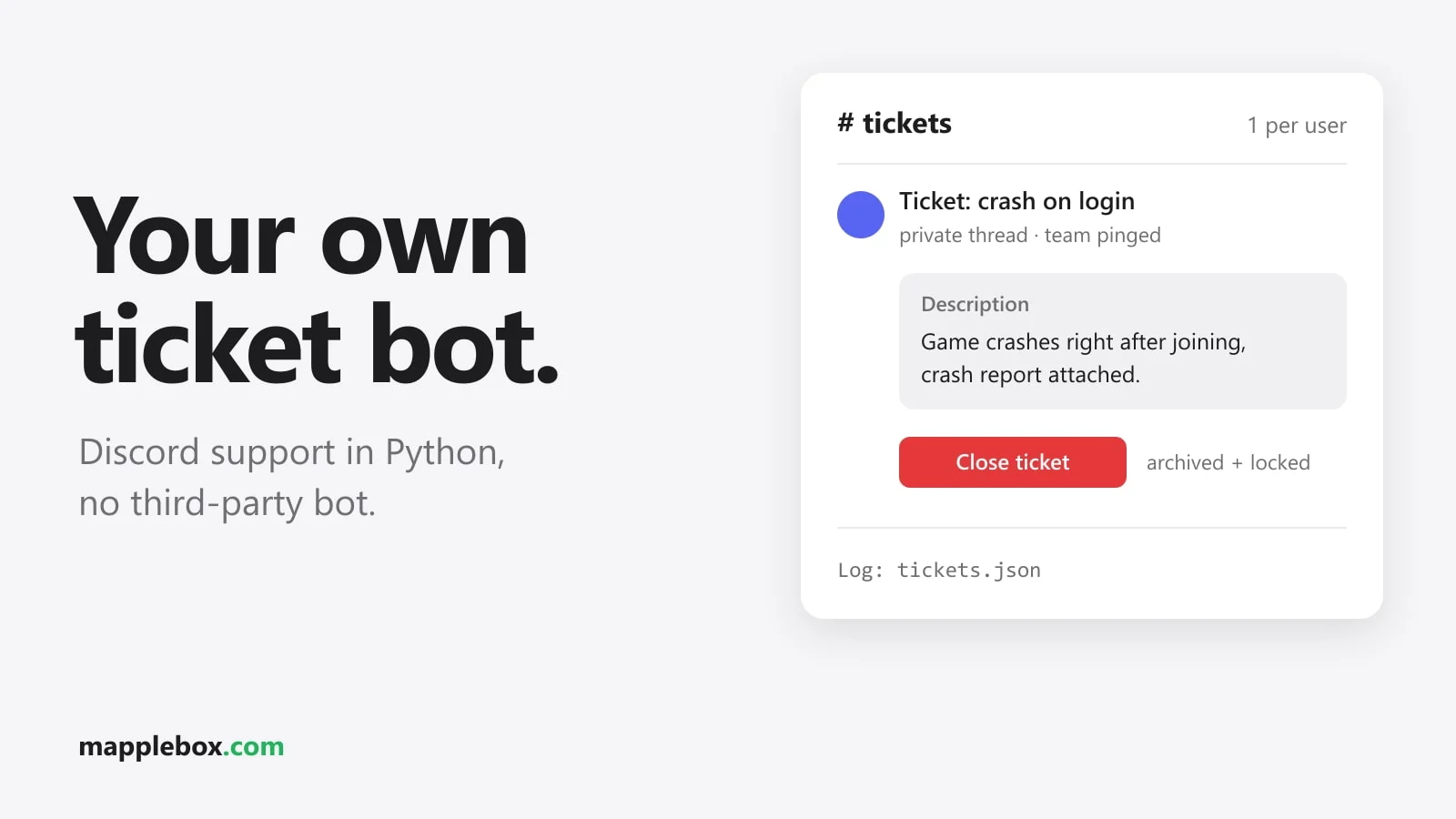
When something goes wrong on your game server, reports usually end up in public chat or as a DM to whichever admin is online. A ticket system brings order to that. A player types /ticket, picks a topic and describes the problem. A private thread (a separate conversation inside a channel) then opens that only they and your team can see. In this guide you build that system yourself in Python, without a third-party ticket bot with a dashboard and premium tiers. The example is the Cobblemon server CobbleBox, whose Discord runs exactly this script.
Quick summary
- What it’s for: every support request gets its own space that only the player and your team can see. Nothing gets lost in chat or in admin DMs anymore.
- What members see: type
/ticket, pick a topic, describe the problem. They land in a private thread, the team gets pinged, and a red “close ticket” button ends the ticket. - Who it’s for: owners and moderators of a Discord community, for example around a game server, who don’t want a third-party ticket bot.
- What you need: a Discord application with a bot (free in the Developer Portal), Python 3.10 or newer, some Python experience, admin rights on your Discord server and a public HTTPS address, for example through a reverse proxy like Caddy or nginx.
- Effort: about 200 lines of Python plus a small receiver script, no database needed. Apart from the standard library you only need the PyNaCl package for signature checks.
What the ticket system should do
The feature set is deliberately small:
/ticketwith two required fields: topic (a dropdown) and description.- One private thread per ticket in a dedicated
#ticketschannel, named like#007 Bug · PlayerName. - The player is added to the thread, and the team roles get pinged.
- A “close ticket” button that the creator or the team can press. The thread is then archived and locked.
- Only one open ticket per user at a time.
- A log of all tickets in a JSON file.
CobbleBox has five topics: bug, report a player, loss / refund, question and other. The description is limited to 1000 characters.
The bot’s replies and topic labels in the code below are in German, because that’s what CobbleBox uses. Change those strings to whatever language your community speaks. Leave the option names thema and beschreibung as they are, or change them everywhere they appear.
The script talks to the Discord API directly
Many tutorials use discord.py (a Python library for bots) with cogs, views and decorators. The CobbleBox script gets by with less. It talks to the Discord REST API directly, which is the interface programs use to talk to Discord. All it takes is a small helper call(method, path, body) that sends the bot token (your bot’s secret password) as a header. Slash commands (commands starting with /), buttons and replies are plain JSON objects, exactly as they appear in the Discord docs. JSON is a text format made of name/value pairs. The ticket module itself only imports from the standard library (json, os, threading, time, urllib). That applies to the module. For the input to actually reach your bot, you also need a small receiver, and that part needs one extra package.
Interactions are inputs like commands or button clicks. The two handlers (the functions for the command and the button) receive the interaction object as a dictionary (Python’s collection of name/value pairs) and return their reply the same way. Discord offers two ways for interactions to arrive, and you only ever use one of them:
- Gateway: a permanent WebSocket connection to Discord, the way discord.py sets it up. You then send the reply yourself with
POST /interactions/<interaction-id>/<interaction-token>/callbackand the dictionary as the body. For the gateway you need a WebSocket library. With the standard library alone it gets tedious. - HTTP interactions endpoint: Discord sends every interaction as a POST to a web address you enter in the Developer Portal. The reply is simply the body of your HTTP response. For this you have to verify every request with an Ed25519 signature (headers
X-Signature-Ed25519andX-Signature-Timestamp).
For a new bot, the HTTP endpoint is the better choice. It fits handlers that return a dictionary, and you only need one package: PyNaCl for the signature check. You’ll find the finished receiver in step 8. If your bot already runs on discord.py over the gateway, keep it there and send the handlers’ dictionary through the callback endpoint above. As soon as an endpoint URL is set in the Developer Portal, interactions stop arriving over the gateway.
Preparation: create and invite the bot
In the Discord Developer Portal, create an app with “New Application”. On the “General Information” page you’ll find the Application ID and the Public Key. You’ll need both in a moment. Under “Bot”, click “Reset Token” to generate the bot token. Never show that token to anyone. Store it as an environment variable so it never ends up in your code by accident:
pip install pynacl

export DISCORD_TOKEN="your-bot-token"
export DISCORD_APP_ID="your-application-id"
export DISCORD_PUBLIC_KEY="your-public-key"
You invite the bot with the scopes bot and applications.commands. The permissions in the link are View Channel, Manage Threads, Create Private Threads and Send Messages in Threads. Together that adds up to the value 360777253888. You can click the link together under “OAuth2” in the URL Generator or build it directly like this:
https://discord.com/oauth2/authorize?client_id=<app-id>&scope=bot+applications.commands&permissions=360777253888Open the link, pick your server and confirm. To get the IDs for the config, turn on Developer Mode in Discord under User Settings → Advanced. After that, right-clicking a channel, a role (Server Settings → Roles) or the server icon gives you a “Copy ID” entry.
The helpers: API calls, config and JSON file
The code samples in the steps use a few small functions. They go at the top of your file tickets.py. call sends a request to the Discord API with the bot token and a user agent in the format DiscordBot (url, version), which Discord requires. Put your project’s address in there:
import json, os, threading, time, urllib.error, urllib.request

API = "https://discord.com/api/v10"
TOKEN = os.environ["DISCORD_TOKEN"]
HERE = os.path.dirname(os.path.abspath(__file__))
TICKETS_FILE = os.environ.get("TICKETS_FILE", os.path.join(HERE, "tickets.json"))
EPHEMERAL = 64
lock = threading.Lock()

def call(method, path, body=None):
    req = urllib.request.Request(API + path, method=method,
        data=None if body is None else json.dumps(body).encode(),
        headers={"Authorization": f"Bot {TOKEN}",
                 "User-Agent": "DiscordBot (https://example.com, 1.0)",
                 "Content-Type": "application/json"})
    with urllib.request.urlopen(req, timeout=10) as r:   # raises HTTPError on 4xx/5xx
        raw = r.read()
    return json.loads(raw) if raw else {}

def read_json(path, default):
    try:
        with open(path, encoding="utf-8") as f:
            return json.load(f)
    except FileNotFoundError:
        return default

cfg = read_json(os.path.join(HERE, "config.json"), {})
if "ticket_channel_id" not in cfg or "ticket_role_ids" not in cfg:
    raise SystemExit("config.json is missing or lacks ticket_channel_id / ticket_role_ids. Create it next to tickets.py.")
TICKET_CHANNEL = cfg["ticket_channel_id"]

def private(text):                       # reply that only the clicking user sees
    return {"type": 4, "data": {"content": text, "flags": EPHEMERAL,
                                "allowed_mentions": {"parse": []}}}

def edit_original(inter, text):          # replace the "thinking …" reply
    call("PATCH", f"/webhooks/{inter['application_id']}/{inter['token']}/messages/@original",
         {"content": text, "allowed_mentions": {"parse": []}})

def open_ticket_of(user_id):             # open ticket that still exists in Discord
    for tid, t in read_json(TICKETS_FILE, {"tickets": {}})["tickets"].items():
        if t["user_id"] != user_id or t["status"] != "open":
            continue
        try:
            ch = call("GET", f"/channels/{tid}")
        except urllib.error.HTTPError as e:
            if e.code == 404:            # thread was deleted
                continue
            raise
        if not ch.get("thread_metadata", {}).get("archived"):
            return tid
    return None

def mark_closed(tid, user):
    with lock:
        data = read_json(TICKETS_FILE, {"next": 1, "tickets": {}})
        data["tickets"][tid].update(status="closed", closed=int(time.time()),
                                    closed_by=user.get("username"))
        write_json(data)

def create_safe(inter, *args):           # report background errors to the player
    try:
        create(inter, *args)
    except Exception as e:
        print("Ticket-Fehler:", e)
        edit_original(inter, "Das Ticket konnte nicht erstellt werden. Bitte schreib dem Team direkt.")
write_json follows in step 7. Next to the script, create a config.json. If the file or one of the two values is missing, the script stops at startup with a clear message. Write IDs as strings, because that’s how Discord sends them too:
{
  "ticket_channel_id": "123456789012345678",
  "ticket_role_ids": ["234567890123456789", "345678901234567890"]
}
Step 1: Define and register the slash command
The command is a JSON object. Option type 3 is a string (a text field), and choices turns it into a fixed dropdown. You can register it as a guild command (valid on one server only) with a PUT request. It’s then available on your server right away. The code defines the topics and input fields and registers the command with Discord:
TOPICS = {"bug": "Bug", "spieler": "Spieler melden", "verlust": "Verlust / Rückerstattung",
          "frage": "Frage", "sonstiges": "Sonstiges"}

COMMAND = {
    "name": "ticket",
    "description": "Support-Ticket öffnen: privater Thread mit dem Team",
    "options": [
        {"type": 3, "name": "thema", "description": "Worum geht es?", "required": True,
         "choices": [{"name": label, "value": key} for key, label in TOPICS.items()]},
        {"type": 3, "name": "beschreibung", "description": "Was ist passiert?",
         "required": True, "max_length": 1000},
    ],
}
TOPICS and COMMAND live in tickets.py. You register the command with a small separate file register.py in the same folder. Replace <guild-id> with your server’s ID (right-click the server icon → Copy ID):
import os
from tickets import call, COMMAND

# register once (overwrites all guild commands of this app)
call("PUT", f"/applications/{os.environ['DISCORD_APP_ID']}/guilds/<guild-id>/commands", [COMMAND])
Run the file once with python3 register.py, using the same environment variables as in the preparation. After that, /ticket shows up on your server. Keep in mind that the PUT replaces the entire list. If your bot already has other guild commands, add them to the list too.
Step 2: Create the ticket channel
The #tickets channel is set up so everyone can read it, but nobody can post there or create threads themselves. For @everyone, only “Send Messages in Threads” is allowed, so players can reply inside their own ticket. The CobbleBox script creates the channel itself the first time it’s called directly and sets these permission overwrites (permission exceptions that apply to this channel only). It then saves the channel ID in the bot config (its settings file) and posts an info message with instructions. For that, the bot needs admin rights once.
Doing it by hand is just as quick, and your bot never needs admin rights. Create a text channel #tickets and open Edit Channel → Permissions. Set these exceptions:
@everyone: allow View Channel and Read Message History, allow Send Messages in Threads. Deny Send Messages, Create Public Threads and Create Private Threads.- Your bot (pick it via “Add members or roles”): allow View Channel, Create Private Threads, Send Messages in Threads, Manage Threads and Embed Links. Without Embed Links, Discord won’t show the embed in the ticket.
- Optional: post an info message in the channel yourself before you block Send Messages for everyone, for example “Type /ticket to open a ticket”.
The config then holds the two values the ticket module needs: ticket_channel_id and ticket_role_ids (the roles that get pinged and are allowed to close tickets). On CobbleBox those are the moderator role and the owner role. Copy both IDs with a right-click in Developer Mode and put them into config.json.
📸 [Screenshot: #tickets channel with info post and the /ticket input with topic dropdown, Lion adds this]
Step 3: Answer /ticket and create the private thread
Discord expects a reply to an interaction within 3 seconds. Creating a thread, adding the player and posting the first message are several API calls (requests to Discord), and that can get tight. So the handler replies immediately with type 5 (deferred, “thinking …”). That’s an ephemeral message only the player sees. It does the rest in a background thread (a second line of work inside the program, not a Discord thread). At the end, the original reply is edited through the interaction token, the key for exactly that reply. In the code, open_ticket replies right away and create builds the ticket in the background. create_safe from the helpers calls create and replaces the reply with an error message if anything goes wrong.
def open_ticket(inter, opts):
    user = (inter.get("member") or {}).get("user") or {}
    if not inter.get("guild_id"):
        return private("Tickets gehen nur auf dem Discord-Server.")
    threading.Thread(target=create_safe, args=(inter, user, opts["thema"], opts["beschreibung"]),
                     daemon=True).start()
    return {"type": 5, "data": {"flags": EPHEMERAL}}   # reply now, rest in the background

def create(inter, user, topic, text):
    with lock:
        if open_ticket_of(user["id"]):
            return edit_original(inter, "Du hast schon ein offenes Ticket.")
        data = read_json(TICKETS_FILE, {"next": 1, "tickets": {}})
        n = data["next"]
        name = f"#{n:03d} {TOPICS[topic]} · {user['username']}"[:100]
        thread = call("POST", f"/channels/{TICKET_CHANNEL}/threads",
                      {"name": name, "type": 12, "invitable": False, "auto_archive_duration": 10080})
        data["next"] = n + 1
        data["tickets"][thread["id"]] = {"n": n, "user_id": user["id"], "topic": topic,
                                         "text": text, "status": "open", "opened": int(time.time())}
        write_json(data)
    call("PUT", f"/channels/{thread['id']}/thread-members/{user['id']}")
    edit_original(inter, f"Dein Ticket ist offen: <#{thread['id']}>")
Three values matter for the thread: type: 12 is a private thread, invitable: False stops regular members from adding more people, and auto_archive_duration: 10080 is 7 days in minutes. Thread names can be at most 100 characters, so the name gets cut off.
The original reply is edited with a PATCH request (which changes only individual fields): PATCH /webhooks/<application_id>/<interaction-token>/messages/@original. Both values are in the interaction object you receive.
Step 4: Ping the team and post the close button
The first message in the thread mentions the player and the team roles. In a private thread, everyone you mention (with @ in the text) who can see the channel is added automatically. So you don’t have to invite team members one by one. For roles this only works under two conditions: the role has fewer than 100 members, and the bot is allowed to ping it at all. To allow that, enable “Allow anyone to @mention this role” in the role settings, or give the bot the permission “Mention @everyone, @here, and All Roles”. At most 10 roles count per message. With allowed_mentions you make sure only this player and these roles get pinged.
The following block goes into create from step 3 (indented by four spaces), right after the line with call("PUT", … /thread-members/ …) and before the final edit_original. At that point thread, user, n, topic and text are already set. The code posts the message with pings, an embed (an info box) and the red button:
roles = [str(r) for r in cfg["ticket_role_ids"]]
call("POST", f"/channels/{thread['id']}/messages", {
    "content": " ".join([f"<@{user['id']}>"] + [f"<@&{r}>" for r in roles]),
    "allowed_mentions": {"users": [user["id"]], "roles": roles},
    "embeds": [{"title": f"Ticket #{n:03d} · {TOPICS[topic]}", "description": text}],
    "components": [{"type": 1, "components": [{
        "type": 2, "style": 4,                 # button, red
        "label": "Ticket schließen",
        "custom_id": "ticket_close",
        "emoji": {"name": "🔒"},
    }]}],
})
On CobbleBox the embed also shows the player’s Minecraft name if their Discord account is linked to their Minecraft account. That mapping comes from a separate JSON file the server maintains anyway. If nothing is linked, it says “not linked”.
Step 5: The button after a restart
In discord.py, buttons that survive a bot restart need a “persistent view” that gets registered again on startup. Without a library you skip that. The button has a fixed custom_id, an identifier Discord sends along with every click. Your interaction dispatcher (the part of the bot that routes input) passes every click with ticket_close to the close handler. Which thread it’s about comes from the interaction’s channel_id, and the status is stored in the JSON file. The bot process holds no state that could get lost in a restart.
Step 6: Check permissions and close the ticket
Everyone in the thread sees the button, so the handler has to check who clicked. Allowed are the ticket’s creator, anyone with one of the team roles and anyone with the Administrator permission (bit 3 in the member’s permission field). The code checks this, marks the ticket as closed and locks the thread shortly after:
def close_button(inter):
    tid = inter["channel_id"]
    member = inter.get("member") or {}
    user = member.get("user") or {}
    t = read_json(TICKETS_FILE, {"tickets": {}})["tickets"].get(tid)
    if not t:
        return private("Das ist kein Ticket-Thread.")
    if t["status"] == "closed":          # reopened by the team? then it may be closed again
        if call("GET", f"/channels/{tid}").get("thread_metadata", {}).get("archived"):
            return private("Das Ticket ist schon geschlossen.")
    team = set(map(str, cfg["ticket_role_ids"]))
    is_admin = int(member.get("permissions") or 0) & (1 << 3)
    if user.get("id") != t["user_id"] and not (team & set(member.get("roles", []))) and not is_admin:
        return private("Nur wer das Ticket geöffnet hat oder das Team kann es schließen.")
    mark_closed(tid, user)   # status="closed", closed=timestamp, closed_by=name

    def archive():
        time.sleep(1.5)      # let the reply post first, a locked thread accepts nothing
        call("PATCH", f"/channels/{tid}", {"archived": True, "locked": True})
    threading.Thread(target=archive, daemon=True).start()
    return {"type": 4, "data": {"content": f"🔒 Ticket geschlossen von <@{user['id']}>.",
                                "allowed_mentions": {"parse": []}}}
locked: True makes sure the player can’t simply reopen the thread by posting a new message. The team can still reopen it in Discord. For that case the handler checks whether a ticket marked as closed is actually archived right now. That’s what the if t["status"] == "closed" block above does: if the team reopened the thread, it can be closed once more.
📸 [Screenshot: ticket thread with embed, team ping and red “close ticket” button, Lion adds this]
Step 7: The JSON log
You don’t need a database for a community ticket system. tickets.json has only two keys: next for the running ticket number and tickets, a dictionary keyed by thread ID. For each ticket it stores the number, user ID, topic, text, status and opening time, and after closing also the time and who closed it.
Writes are atomic, meaning they happen in one go: first into a temporary file, then os.replace swaps it in. That way you never end up with a half-written JSON file if the process dies mid-write. Here’s the function:
def write_json(data):
    tmp = TICKETS_FILE + ".tmp"
    with open(tmp, "w", encoding="utf-8") as f:
        json.dump(data, f, indent=1, ensure_ascii=False)
    os.replace(tmp, TICKETS_FILE)
The CobbleBox script can read the path from an environment variable (a setting passed when the program starts). Otherwise the file sits next to the script. You can host all of this wherever your bot already runs. The ticket module is just one more Python file the bot imports.
Step 8: Receive and route interactions
The last missing piece takes the input from Discord and passes it to open_ticket or close_button. The script server.py uses the HTTP endpoint. It checks the signature with PyNaCl, answers the PING that Discord sends when you save the URL, and routes commands (type 2) and button clicks (type 3). The handlers’ return value goes straight back as the response:
import json, os
from http.server import BaseHTTPRequestHandler, ThreadingHTTPServer
from nacl.exceptions import BadSignatureError
from nacl.signing import VerifyKey     # pip install pynacl
import tickets

VERIFY_KEY = VerifyKey(bytes.fromhex(os.environ["DISCORD_PUBLIC_KEY"]))

def dispatch(inter):
    if inter["type"] == 1:                                    # PING
        return {"type": 1}
    data = inter.get("data", {})
    if inter["type"] == 2 and data.get("name") == "ticket":   # Slash Command
        opts = {o["name"]: o["value"] for o in data.get("options", [])}
        return tickets.open_ticket(inter, opts)
    if inter["type"] == 3 and data.get("custom_id") == "ticket_close":   # Button
        return tickets.close_button(inter)
    return tickets.private("Unbekannte Aktion.")

class Handler(BaseHTTPRequestHandler):
    def do_POST(self):
        body = self.rfile.read(int(self.headers.get("Content-Length", 0)))
        try:
            VERIFY_KEY.verify(self.headers["X-Signature-Timestamp"].encode() + body,
                              bytes.fromhex(self.headers["X-Signature-Ed25519"]))
        except (BadSignatureError, AttributeError, TypeError, ValueError):
            self.send_response(401)      # Discord also tests with invalid signatures
            self.end_headers()
            return
        out = json.dumps(dispatch(json.loads(body))).encode()
        self.send_response(200)
        self.send_header("Content-Type", "application/json")
        self.send_header("Content-Length", str(len(out)))
        self.end_headers()
        self.wfile.write(out)

ThreadingHTTPServer(("127.0.0.1", 8080), Handler).serve_forever()
The script only listens locally on port 8080. You make it reachable from outside through your reverse proxy, for example Caddy, which also takes care of the HTTPS certificate:
tickets.example.com {
    reverse_proxy 127.0.0.1:8080
}
Start python3 server.py (with the environment variables from the preparation) and, in the Developer Portal under “General Information”, enter the address https://tickets.example.com as the “Interactions Endpoint URL”. When you save, Discord sends a PING and checks that your script rejects invalid signatures. The URL only saves if both work. For permanent operation, put server.py in a systemd service or a Docker container.
Check that it works
Test with a second Discord account that has no team role. Your admin account can see private threads anyway, so you’d miss permission errors.
- With the test account, type
/ticketin#tickets, pick a topic and write a description. After a short “thinking …” you get “Dein Ticket ist offen” (“your ticket is open”) with a link to the thread. - The thread shows the ping for the test account and the team roles, the embed and the red button. A third member without a team role must not be able to see the thread.
- Type
/ticketagain with the test account. The reply has to be “Du hast schon ein offenes Ticket.” (“you already have an open ticket”). - Click the close button. The message “Ticket geschlossen von …” (“ticket closed by …”) appears, and shortly after the thread is archived and locked.
tickets.jsonlists the ticket with"status": "closed", the time and the name.
If the first step fails, check the output of server.py. An HTTPError 403 almost always means the bot is missing one of the channel permissions from step 2.
Common problems and how the script handles them
Most of a ticket bot’s pitfalls only show up once it’s running. The CobbleBox code already has a fix built in for these:
- “The application did not respond”: this happens when you miss the 3 seconds. So reply deferred right away and create the thread in the background. If something fails there, the reply changes to an error message asking the player to contact the team directly, so they aren’t left staring at a message that loads forever.
- Duplicate tickets from a fast double click: two
/ticketcalls in quick succession run in two background threads. Athreading.Lock(a lock that only lets one thread through at a time) around the check, thread creation and write stops both from slipping through or getting the same number. - Deleted threads block the player: if someone on the team deletes a ticket thread by hand, the ticket is still “open” in the log. The open-ticket check therefore asks Discord whether the thread still exists and isn’t archived, and skips it otherwise.
- The close confirmation is missing: if the thread is locked immediately, the “ticket closed by …” reply can’t appear anymore. The script waits 1.5 seconds before archiving and locking.
- Unwanted pings: every bot reply sets
allowed_mentionsto empty, except the first ticket message, which deliberately mentions the player and team roles. That way nobody can trigger an@everyonethrough the description. - Tickets via DM: slash commands can also be used outside the server. Without a
guild_id(the server’s identifier), the handler refuses, because threads only exist on the server. - The first test counts: on CobbleBox, ticket #001 was a test ticket that was closed right away. Numbering simply continues after that. It does no harm, and now you won’t wonder about the gap later.
Wrapping up
With about 200 lines of Python and the Discord REST API you get private ticket threads with a team ping, a close button with a permission check and a log in a JSON file. If you want to set up a Cobblemon server like this with Pelican (a web panel for game servers), the guide How to set up a Cobblemon server shows you how.
Did this guide help you? You can buy me a coffee on Ko-fi. It keeps MappleBox ad-free.